Showing posts with label without. Show all posts

Wednesday, October 12, 2016

how to download nokia applications on ovi website using pc without using your mobile non OTA

how to download nokia applications on ovi website using pc without using your mobile non OTA


1. Go to the ovi site..http://store.ovi.com/#/applications.
2. click on the application you want to download.
3. now click on "Send to Friend"


4. you will arrive here.


5. change the "send-to-friend" to download


6. a pop up will appear like this.


7. click save.


8. done..

hope this helps.

note. you must have an account in ovi..

--------------------------------------------------------------------

update

if after step 6 you are presented with this.


it means that you are downloading a jad file.

so heres the step after you save the jad file.

1. open the jad file in notepad


2. look for the "midlet jar url:" line and copy the url (encircled in red).
3. paste the url in your browser and press enter.


4. click save.


---------------------------------------------------------------

if after step 6 you are presented with this.


it means that you are downloading a dm file.

heres the step after you save the dm file.

1. open the dm file in notepad.


2. note the "content" line it says that the application is in sisx format.
3. delete the four lines (including the blank fourth line) encircled in red, so that you will come up with this.


4. save the file with the sisx extension.


done..

hope this helps...

Go to link download

Read more »

Sunday, October 2, 2016

how to reinstall windows xp in acer aspire one netbook without cd

how to reinstall windows xp in acer aspire one netbook without cd


actually this procedure is just setting to factory your acer aspire one netbook. but at least you will not need any cd.


1. power off your netbook.


2. press power ON, then alt+F10.


3. then you will be presented with the screen asking you to restore to factory settings.


4. click restore factory settings.


5. and the restoring will proceed as shown below.


6. after finish the netbook will continue with a series of reboots (installing drivers).


7. this is the finised product.


note1: this netbook is in arabic, somewhere in the netbooks reboot, it will ask you for the language, here you can choose your preferred language,


and since the owner wants it in english, we change it to english.


note2: this does not need any cd, we use the recovery partition, which is activated when you press Alt+F10.


note3: the good thing here is that you will not need any drivers for the hardware, it will automatically install all the drivers that where previously installed in the netbook, including the wifi, bluetooth, and sound.


note4: another good thing is the windows xp installed is legit and not pirated.


Go to link download

Read more »

Tuesday, September 13, 2016

Symphony W100 Orignal Flash File Without password

Symphony W100 Orignal Flash File Without password


ITS OTHERS BRAND MODEL FILE BUT NO PROBLEM I M TESTED

DOWNLOAD


Go to link download

Read more »

Saturday, September 10, 2016

Rockchip CPU Solution For Hang Problem Pattern Problem Paswword Without Adb

Rockchip CPU Solution For Hang Problem Pattern Problem Paswword Without Adb


Rockchip CPU Solution For Hang Problem/Pattern Problem/Paswword Without Adb 

1] Connect your device first in bootmode 
[ theres a lot of bootmode on rockchip much better try all the buttons ]
2] Connect tab to p.c
3] RUN Software 
4] Do following 
5.enjoy 
http://www.mediafire.com/?exoc5g2kzawesrq

Go to link download

Read more »

Wednesday, September 7, 2016

How To Change Font On Android Phone Without Root

How To Change Font On Android Phone Without Root


Method 1st:- Using GO Launcher Ex (For Non rooted Phone)


Android GO Launcher ExGO launcher Ex is one the popular Android phone launcher app that allow you to change your system fonts and provide your Android device a new look with amazing colors and styles. It also provide different types of wallpapers to make our screen more attractive. It is available on Google PlayStore for free. It can also lock Apps with Pattern and pin lock. It support 4M apk to increase our phone performance. It also provide XX transition effect to each slide. It is a light weight application with attractive and easy to use interface. Approx having 200 million users. As i already listed out some best android launchers.


Steps To Change Fonts Using GO Launcher EX


Step 1. First of all install GO Launcher from Google Play Store or by clicking the button below.

https://play.google.com/store/apps/details?id=com.gau.go.launcherex&hl=en
Step 2. Secondly you have to install GO Launcher Fonts from the Play Store or by clicking the button below. GO launcher fonts is an Amazing App that provide different fonts. 
GO Launcher change fonts android

 https://play.google.com/store/apps/details?id=com.beecub.golauncher.golauncherfonts&hl=en
Step 3. Open the Go Launcher App and from the home screen tap the Menu button at right corner .
Step 4. Select the preferences from the menu then look for the font option.
 Go Launcher font settings tab
Step 5. Now you see the list of fonts then select the font of your choice.
Step 6. You can manually put the font files to the path /sdcard/GOlauncher Ex/fonts.

Step 7. After doing the changes, changes take place immediately without restarting the Phone.


Method 2nd:- Using Font Installer (For Rooted Android Phones)


Font Installer change for android root Font installer is one of the best Android App for changing the fonts of rooted device. It is available on Google Play Store for free. It allow you to install hundreds of custom fonts, preview, backup, install from SD card and also allow you to share our fonts. It allow you to give your phone a new look with many custom fonts. Approximately 5,000,000 install this App. It is a light weight App which provide simple to use interface.


Steps To Change Font Using Font Installer App


Step 1. Download and install Font installer App into your Android device by clicking the following button.
https://play.google.com/store/apps/details?id=com.jrummy.font.installer&hl=en
Step 2. Open and launch the App. Then look for the server Tab.
Font Installer settings
Step 3. In the server Tab you see a list of TTF font files which can be downloaded.  
Step 4. You can view and install any of the font from the list. Tap the desired font and click on install.
Font Installer change font
Step 5. After that you see a backup message. Once your fonts are backed up you will be prompted to reboot your phone to reflect the desired fonts.
Font Installer change font reboot


Steps To Use TTF Files


Step 1. If you have downloaded TTF file then you can copy your font file to /sdcard directory.

Step 2. Run the Font installer App and Backup your previous fonts. You have to grant Superuser or SuperSU permission when prompted.

Step 3. Now click on the local tap and find the TTF file that you copy on the sdcard.

Step 4. Click on the desired TTF file that you want to use and tap the install option to make it system font.

Step 5. Reboot your device to reflect the changes.

Go to link download

Read more »

Wednesday, August 31, 2016

How To Use Whatsapp Without Mobile Number

How To Use Whatsapp Without Mobile Number


Method To Use whatsapp Without Mobile Number.


Step 1. Firstly you have to download whatsapp messenger in your Android device and install and launch it.
Step 2. If you are old whatsapp user then you have to delete your whatsapp account and download and install whatsapp again.
Step 3. Next step is enter your name and verify your mobile number. But you do not enter your mobile number now.
Step 4. Then we have to verify your mobile number with another way. Download Text+ App in your mobile to verify your mobile number.
https://play.google.com/store/apps/details?id=com.gogii.textplus&hl=en
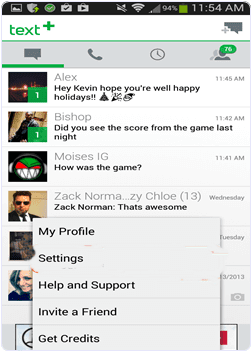
Step 5. After launching text + App you have to open the App and go to settings and select contacts.
android text+ app to use whatsapp without number
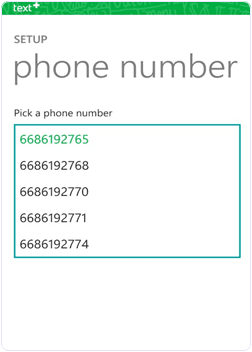
Step 6. You will get a number for your personal use in the app. Copy that number or write it .
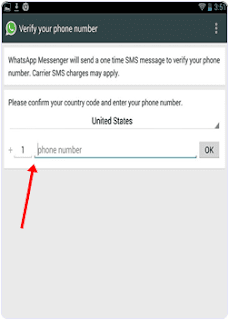
Step 7. Now open your whatsapp messenger and paste the number that you get from the text + App.
android text+ phone number list to use whatsapp
Step 8. Click on continue button now you will get a verification code in Text+ app.
Step 9. Get this code and verify your account. Now your whatsapp account is ready without any number.
add new unknown number to whatsapp without number
I hope you like this tutorial about using whatsapp without number.

Go to link download

Read more »

Wednesday, August 24, 2016

Mycell Alien SX2 Factory Firmware 100 tested Without Password

Mycell Alien SX2 Factory Firmware 100 tested Without Password


Mycell Alien SX2 Factory Firmware 100% tested
  Without Password
Download Here

Go to link download

Read more »

Thursday, August 18, 2016

GDL Xtreme 1 Flash File WITHOUT PASSWORD tested

GDL Xtreme 1 Flash File WITHOUT PASSWORD tested


GDL Xtreme-1 Flash File WITHOUT PASSWORD tested


DOWNLOAD

WITHOUT PASSWORD

Go to link download

Read more »