Showing posts with label color. Show all posts
Showing posts with label color. Show all posts
Friday, September 23, 2016
Change Dress Color Using Photoshop!!
Change Dress Color Using Photoshop!!

Some little tricks of Adobe Photoshop may enable you to perform extraordinary works. Even you can prove yourself as magician to common people. Today Ive come with such tricks which will help you to change the color of dress without hurting the background and subject of the image . . .
Before you start, please have a look at this post also -
Use Hue/ Saturation to Modify Color in Photoshop
Requirements:
- Adobe Photoshop (Im using version CS6)
- A good quality photo of a person
- Basic knowledge of Photoshop
Step 1 | Choose an Image

Step 2 | Change the Color
Open your image using Photoshop. And do the following tasks -
- Go to the Image Menu > Adjustment > Hue/ Saturation [Ctrl + U]
- Move the Hue slider to left or right.
- Also move the Saturation and Lightness slider (Optional)
When you get the desired dress color, hit OK.

Ive used 100 in Hue option and left the other fields as they are. It brings me the following result:

Now compare it with the first image. This lady got a completely new dress. But Oh My God! What happened to her face and skin? And what about the background?
Okay weve nothing to worry about until we have Photoshop. Now Ive to take some parts of this image back to its original look.
Step 3 | History Brush Tool
At this step, weve to do some works manually. Except the dress, other parts of the image (Face, Hair, Skin & Image background) should be taken to their previous stage.

Look at the above Tool of Photoshop. This is our Trump Card. With this History Brush Tool, you can simply paint the area that needs to be backed to its previous stage.
The keyboard shortcut of this tool is Y.
As soon as you choose History Brush Tool, you will get a circle. Start painting over your image. Press this key [ to decrease the brush size and press this ] to increase.

Here Ive just touched the upper left corner of the image. After painting the whole area except the dress, the final result is as below -

Ive edited this image within a very short time. But if you practice properly and spend little more time, hopefully you will get much better result.
Hope it will help you all. In my next post, I will write more on History Brush Tool. Till then, stay with Marks PC . . .
Caution!
No photo of this tutorial can be used anywhere in the web, print or any other media.
Model: Rizwana, Computer Engineer.
Stay with Marks PC Solution to get more interesting IT topics!
Go to link download

Monday, September 19, 2016
Multi Color Effect For Your Links On Hover For Blogger
Multi Color Effect For Your Links On Hover For Blogger

How to create text links in different colors? Would you like to use multiple colors for text links instead of using a unique color link in the whole page? Confused start to tell what the title, purpose ANAA if you want to link touched the pointer to uppercase, bekedip flashing rainbow colors and the background like fireworks or a star-studded.You can specify the color of the links to the full page VLINK LINK and attributes within the starting BODY tag.
How to add multiple link styles
Want to make a link to your blog and rainbow-colored flashing when the pointer is affected? It is very easy
Now lets start adding it...
Step 1. Login to Your Blogger Account.Go to your Blogger Dashboard.Click on Layout tab from left pane and click on Add a Gadget link.

Step 2. After click on Add a Gadget link A pop-up box will open now
with many gadget list, Choose HTML/JavaScript from the gadget options by clicking the blue plus sign for that gadget.
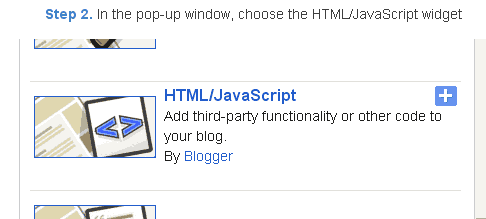
Step 3. Select HTML/Javascript and add the one of code given below.
Step 4. Now Click On Save JavaScript You are done.
<script type=text/javascript>
//<;
function stopRainbow()
{
if (act) {
objActive.style.color = clrOrg;
clearInterval(TimerID);
act = 0;
}
}
function doRainbowAnchor()
{
if (act == 0) {
var obj = event.srcElement;
while (obj.tagName != A && obj.tagName != BODY) {
obj = obj.parentElement;
if (obj.tagName == A || obj.tagName == BODY)
break;
}
if (obj.tagName == A && obj.href != ) {
objActive = obj;
act = 1;
clrOrg = objActive.style.color;
TimerID = setInterval("ChangeColor()",100);
}
}
}
function stopRainbowAnchor()
{
if (act) {
if (objActive.tagName == A) {
objActive.style.color = clrOrg;
clearInterval(TimerID);
act = 0;
}
}
}
function Mozilla_doRainbowAnchor(e)
{
if (act == 0) {
obj = e.target;
while (obj.nodeName != A && obj.nodeName != BODY) {
obj = obj.parentNode;
if (obj.nodeName == A || obj.nodeName == BODY)
break;
}
if (obj.nodeName == A && obj.href != ) {
objActive = obj;
act = 1;
clrOrg = obj.style.color;
TimerID = setInterval("ChangeColor()",100);
}
}
}
function Mozilla_stopRainbowAnchor(e)
{
if (act) {
if (objActive.nodeName == A) {
objActive.style.color = clrOrg;
clearInterval(TimerID);
act = 0;
}
}
}
function ChangeColor()
{
objActive.style.color = makeColor();
}
function makeColor()
{
// Dont you think Color Gamut to look like Rainbow?
// HSVtoRGB
if (elmS == 0) {
elmR = elmV; elmG = elmV; elmB = elmV;
}
else {
t1 = elmV;
t2 = (255 - elmS) * elmV / 255;
t3 = elmH % 60;
t3 = (t1 - t2) * t3 / 60;
if (elmH < 60) {
elmR = t1; elmB = t2; elmG = t2 + t3;
}
else if (elmH < 120) {
elmG = t1; elmB = t2; elmR = t1 - t3;
}
else if (elmH < 180) {
elmG = t1; elmR = t2; elmB = t2 + t3;
}
else if (elmH < 240) {
elmB = t1; elmR = t2; elmG = t1 - t3;
}
else if (elmH < 300) {
elmB = t1; elmG = t2; elmR = t2 + t3;
}
else if (elmH < 360) {
elmR = t1; elmG = t2; elmB = t1 - t3;
}
else {
elmR = 0; elmG = 0; elmB = 0;
}
}
elmR = Math.floor(elmR).toString(16);
elmG = Math.floor(elmG).toString(16);
elmB = Math.floor(elmB).toString(16);
if (elmR.length == 1) elmR = "0" + elmR;
if (elmG.length == 1) elmG = "0" + elmG;
if (elmB.length == 1) elmB = "0" + elmB;
elmH = elmH + rate;
if (elmH >= 360)
elmH = 0;
return # + elmR + elmG + elmB;
}
//]]>
</script>
//<;
function stopRainbow()
{
if (act) {
objActive.style.color = clrOrg;
clearInterval(TimerID);
act = 0;
}
}
function doRainbowAnchor()
{
if (act == 0) {
var obj = event.srcElement;
while (obj.tagName != A && obj.tagName != BODY) {
obj = obj.parentElement;
if (obj.tagName == A || obj.tagName == BODY)
break;
}
if (obj.tagName == A && obj.href != ) {
objActive = obj;
act = 1;
clrOrg = objActive.style.color;
TimerID = setInterval("ChangeColor()",100);
}
}
}
function stopRainbowAnchor()
{
if (act) {
if (objActive.tagName == A) {
objActive.style.color = clrOrg;
clearInterval(TimerID);
act = 0;
}
}
}
function Mozilla_doRainbowAnchor(e)
{
if (act == 0) {
obj = e.target;
while (obj.nodeName != A && obj.nodeName != BODY) {
obj = obj.parentNode;
if (obj.nodeName == A || obj.nodeName == BODY)
break;
}
if (obj.nodeName == A && obj.href != ) {
objActive = obj;
act = 1;
clrOrg = obj.style.color;
TimerID = setInterval("ChangeColor()",100);
}
}
}
function Mozilla_stopRainbowAnchor(e)
{
if (act) {
if (objActive.nodeName == A) {
objActive.style.color = clrOrg;
clearInterval(TimerID);
act = 0;
}
}
}
function ChangeColor()
{
objActive.style.color = makeColor();
}
function makeColor()
{
// Dont you think Color Gamut to look like Rainbow?
// HSVtoRGB
if (elmS == 0) {
elmR = elmV; elmG = elmV; elmB = elmV;
}
else {
t1 = elmV;
t2 = (255 - elmS) * elmV / 255;
t3 = elmH % 60;
t3 = (t1 - t2) * t3 / 60;
if (elmH < 60) {
elmR = t1; elmB = t2; elmG = t2 + t3;
}
else if (elmH < 120) {
elmG = t1; elmB = t2; elmR = t1 - t3;
}
else if (elmH < 180) {
elmG = t1; elmR = t2; elmB = t2 + t3;
}
else if (elmH < 240) {
elmB = t1; elmR = t2; elmG = t1 - t3;
}
else if (elmH < 300) {
elmB = t1; elmG = t2; elmR = t2 + t3;
}
else if (elmH < 360) {
elmR = t1; elmG = t2; elmB = t1 - t3;
}
else {
elmR = 0; elmG = 0; elmB = 0;
}
}
elmR = Math.floor(elmR).toString(16);
elmG = Math.floor(elmG).toString(16);
elmB = Math.floor(elmB).toString(16);
if (elmR.length == 1) elmR = "0" + elmR;
if (elmG.length == 1) elmG = "0" + elmG;
if (elmB.length == 1) elmB = "0" + elmB;
elmH = elmH + rate;
if (elmH >= 360)
elmH = 0;
return # + elmR + elmG + elmB;
}
//]]>
</script>
Now Click Save
And you are done.
Customize And Demo.
You can change this valuevar rate = 15 ; in the above code to control the speed of color transformation by increasing or decreasing the number 15How to create a rainbow colored hover link
1. Go to Blogger Dashboard >> Layout >> Add a gadget >> Add HTML/Javascript Box.
2. Paste the following code in HTML/Javascript Box.
<a href="http://24work.blogspot.com/" target="_blank" title="Blogger Tips and Tricks"><img src="https://bitly.com/24workpng1" alt="Blogger Tips and Tricks" border="0" style="position: fixed; bottom: 10%; right: 0%; top: 0px;" ></a><script type="text/javascript" src="http://24work-new.googlecode.com/svn/trunk/24work-blogspot/multi-color/linkpelangi-ycode.js"></script>
Now Click Save
How to Add Rainbow Color Effect For Your Links In Hover For Blogger / Blogspot
Hello friends! Effect of rainbow colors to random colors will give your link on hover. This widget works based on simple JavaScript. Once applied, all the links on the page displays a rainbow effect onmouseover.
Watch Live Demo
How to add this widget to blogger?
Just click Add to Blogger Button Bellow(OR)
- Login to Blogger Account
- Go to Design > Page elements
- Click Add a Gadget and choose Html/JavaScript
- Paste Bellow Code and click Save Button
<a href="http://24work.blogspot.com/" target="_blank" title="Blogger Tips and Tricks"><img src="https://bitly.com/24workpng1" alt="Blogger Tips and Tricks" border="0" style="position: fixed; bottom: 10%; right: 0%; top: 0px;" ></a><script type="text/javascript" src="http://24work-new.googlecode.com/svn/trunk/24work-blogspot/multi-color/rainbow-colors-ycode.js"></script>
Please leave your comments and responses for better improvement of my blog
Go to link download
Thursday, September 8, 2016
Use Hue Saturation to Modify Color in Photoshop
Use Hue Saturation to Modify Color in Photoshop

Adobe Photoshop offers some extraordinary photo editing tools that make it a great program to the users. Hue/ Saturation is one of them. With this tool you can modify the color of your photos and images. Lets explore this tool . . .
Necessary Tools
- Adobe Photoshop (I prefer CS5 or 6)
- Some photos or images (I prefer flowers)

Using Hue/ Saturation
- Open Photoshop.
- Go to the File Menu > Open an image you need to modify.
- Now go to the Image Menu > Adjustment > Hue/ Saturation (Keyboard Shortcut: Ctrl+U)
- You will get three options: Hue to modify the color, Saturation to adjust the amount of color > Lightness to adjust the lighting.
- Move the slider of Hue (left to right or right to left) and observe the changes.
- You can also try other options here (at your own responsibility).
- Finally, press OK and Save your image. Thats it!
Showing you some Illustrations:
Example 1

Open it using photoshop > Image > Adjustment > Hue/ Saturation > Change the value of Hue from 0 to -55. And you will get the following view:

Example 2

Here Ive used -75 in Hue and got the following image -

Modify the Color of a Part . . .
If you dont need to modify the color of whole picture then you can select the part you wanna modify. Simply use the Marquee tool by press M.

Lots of flowers ha? You can download them all!!
Keyboard Shortcuts used in this tutorial -
- Hue/Saturation: Ctrl + U
- Open: Ctrl + O
- Marquee Tool: Ctrl + M
- Crop: C
- Polygonal Lasso Tool: L
- Move Tool: V
Glad to get you here. Keep reading . . .
Stay with Marks PC Solution to get more interesting IT topics!
Go to link download
Subscribe to:
Posts (Atom)