Showing posts with label myphone. Show all posts
Showing posts with label myphone. Show all posts
Thursday, October 6, 2016
MyPhone My28s a budget friendly device powered by SMART
MyPhone My28s a budget friendly device powered by SMART
Hey guys,
First of all this is the first time I will include a review on my blog. This device is from MyPhone, it is the MyPhone My28s. I got it from SMART for only 888 pesos only. It is locked to SMART network. It also comes with 2 SIM card. There is one SMART Buddy SIM and the other one is a Talk N Text SIM card. SMART Buddy SIM is for Data and Talk N Text is for free text.
I bought it for my son for his gaming and viewing (YouTube) pleasure. For an affordable price it is a great device. Only the cons is the battery life which is not a deal breaker for me.

THE SPECS
4 inch LCD with 480x800 resolution
4 inch LCD with 480x800 resolution
1.2 Ghz Quad Core Sptreadtrum Processor
Mali-400mp GPU
4GB On-board Storage Expandable via MicroSd Card up to 32GB
512MB of RAM
Dual SIM - 1 Standard SIM and 1 MicroSIM (Pre-Installed)
5MP Back Camera with LED Flash
2MP Front Facing Camera with LED Flash
Android OS 5.1 "Lollipop"
Bluetooth 4.0
Up to HSDPA supported Internet Speed
UPDATE: Smart does not offer Cash on Delivery anymore if you are going to buy this phone. You can still pay using DragonPay if you dont have a credit card. The device now cost 988 pesos which is available in black as I ordered another phone for my friend and also comes up with 100 pesos load (limited batman edition prepaid card)
THE CAMERA
I am not expert in camera but for an affordable price dont expect to have an outstanding results from its camera. The back camera has 5MP camera resolution coupled with LED flash for taking pictures in low light. The LED flash can also use as a torch in case of power interruption in your city. You also have 2MP front facing camera with LED flash for taking selfie pictures in the dark :D.
Here are some photos taken with the back camera


GAMING PERFORMANCE
Im not really into gaming but Ive tried to play Age of Wushu which is a graphic intensive game, you can notice a lag while starting up the game, but once the game started the game is playable. Expect lag when the hero is making skill and other hero is performing skill.
Light games are OK to play there is no lag at all. I played Angry Birds, Monster Shooter, Fruit Ninja and Candy Crush. Yes I did not tried COC but I can assure you that it is fully working with this phone. You can also ask at Facebook Group for any games that I have not tried. My28S community is friendly ;)
BATTERY LIFE
With its miniscule battery it will last a day if you use the phone moderately. But if you are playing games it can only last 1.5 - 2 hours. Using mobile data will kill the battery as the phone heats up too much like you are frying your hands :). It is advisable to use WiFi as WiFi consumes less battery.
CONCLUSION
If you are planning to buy a smartphone that is "SULIT". This would be your smartphone of choice. Great device for those who are studying which can help on researching and also for social media consumption. This device is better than Cherry Mobile C100/Cherry Mobile Astro/Cherry Mobile C200/Cherry Mobile Comet/Cherry Mobile B100 which offers limited internal storage and cost more and outdated OS (Jellybean and Kitkat)
GAMING PERFORMANCE
Im not really into gaming but Ive tried to play Age of Wushu which is a graphic intensive game, you can notice a lag while starting up the game, but once the game started the game is playable. Expect lag when the hero is making skill and other hero is performing skill.
Light games are OK to play there is no lag at all. I played Angry Birds, Monster Shooter, Fruit Ninja and Candy Crush. Yes I did not tried COC but I can assure you that it is fully working with this phone. You can also ask at Facebook Group for any games that I have not tried. My28S community is friendly ;)
BATTERY LIFE
With its miniscule battery it will last a day if you use the phone moderately. But if you are playing games it can only last 1.5 - 2 hours. Using mobile data will kill the battery as the phone heats up too much like you are frying your hands :). It is advisable to use WiFi as WiFi consumes less battery.
CONCLUSION
If you are planning to buy a smartphone that is "SULIT". This would be your smartphone of choice. Great device for those who are studying which can help on researching and also for social media consumption. This device is better than Cherry Mobile C100/Cherry Mobile Astro/Cherry Mobile C200/Cherry Mobile Comet/Cherry Mobile B100 which offers limited internal storage and cost more and outdated OS (Jellybean and Kitkat)
Go to link download

Saturday, October 1, 2016
MyPhone Rio Fun V2 MTK6571 firmware stock rom to unbrick your phone
MyPhone Rio Fun V2 MTK6571 firmware stock rom to unbrick your phone
Hi,
Update: Although this firmware is intended for MyPhone Rio Fun V2, with software version S5202Ap_KK_Agua_Rio_Fun_20140910_1.09 (as shown in my photo that I took below) theres still a possibility that you might brick your phone. As I have said below, I only tried this firmware once with Privacy Password Lock problem. And the procedure that I use is below, and it worked for me. I am not really sure what happened to other MyPhone Rio Fun users that flashed this firmware.
!!!So please flash at your own risk.!!!
Update 2: I was able to fixed another phone with this firmware. The problem of the phone was I was expanding the storage via Link2SD and I accidentally erased an important file. So what I did is I restored the back up via TWRP, but I cannot restore because of mismatch md5 checksum. So tweaked the back up files. And restore again. And BOOM! I bricked the phone. So my last resort was to flash this firmware. I also experience the 4% of death. I tried to firmware upgrade first and It successfully flashed but the phone is in boot loop state.So I flashed it again (Download Only) and it finally boot up properly...
This firmware is for MyPhone Agua Rio Fun V2 or board Version 2 for MTK6571. I have tried this firmware in a phone with Privacy Password.
Please follow my guide carefully, because you might brick your phone. You might experience the 4% of death when you are trying to flash your phone.
The firmware is not rooted. If you want to root this phone you can use Kingroot.
The software version of this firmware is version 1.09. Please check your software version in factory mode (PRESS AND HOLD VOLUME UP + DOWN + POWER BUTTON) Then go to test item, then select the first item.


You can fix the following issue in your phone:
1. Bootloop
2. Damaged System UI
3. TP Upgrade only
4. Dead phone but it is detected in computer
5. Remove Gmail Account / Password / Pattern Lock (Alternative Way)
6. Privacy Protection Password Lock up
"DOWNLOAD THESE FILES"
Firmware Here -->MyPhone Agua Rio Fun Kitkat MTK6571
VCOM Driver -->VCOM Manual
Alternative Driver --> AutoInstaller
Alternative Driver --> AutoInstaller
SPFlashTool --> LatestVersion
"Use WinRar or 7zip to extract the firmware"
"Extract the files to your desired folder"
"If you encounter error in flashtool, use different version of it."
"Extract the files to your desired folder"
"If you encounter error in flashtool, use different version of it."
"I suggest to use 32bit Windows OS for compatibility of the driver"
Installing Driver with AutoInstaller
First try the Alternative Driver, which is the AutoInstaller. Just open the install.exe then it will automatically install the driver. To fully check if the driver is correctly installed in your computer.
Follow these steps:
- Turn off your phone (always powered off is a must)
- Press and hold volume up or down, or you can simple press the two button.
- Insert your USB cable without releasing the VOLUME button(s).
- In your computer, it must detect your phone and it will install the MTK Preloader or Mediatek USB VCOM driver.
- Repeat 1 to 4 if it does not detect your phone.
- If MTK Preloader/Mediatek USB VCOM Driver is installed you are good to go in flashing your phone ^_^
Reference Video using Driver Auto Installer (watch in HD)
Installing Manually using VCOM Driver
When installing it manually your phone must be turned off, then connect it to your computer/laptop while pressing VOLUME UP or VOLUME DOWN. This will detect and look for the driver.

1. This is the first time that you will connect your phone and it will search for the correct driver.

2. Check include this location ... ... and click on browse. Look for USB VCOM Driver and Click on 2K_XP_COM folder if you are using Windows XP or Win7 for Windows 7 and then press OK when you are done picking the right folder for the driver.

3. If the driver is successfully installed MediaTek DA USB VCOM will appear in the New Hardware Wizard.
Video Installing VCOM Driver (please watch in HD)
"Your Phone must be turned off when you are ready to connect and flash your phone"
Flashing1. Launch FlashTool (flash_tool.exe)
2. In Flashtool, Click on Scatter-Loading, and load your scatter file. (see example below)
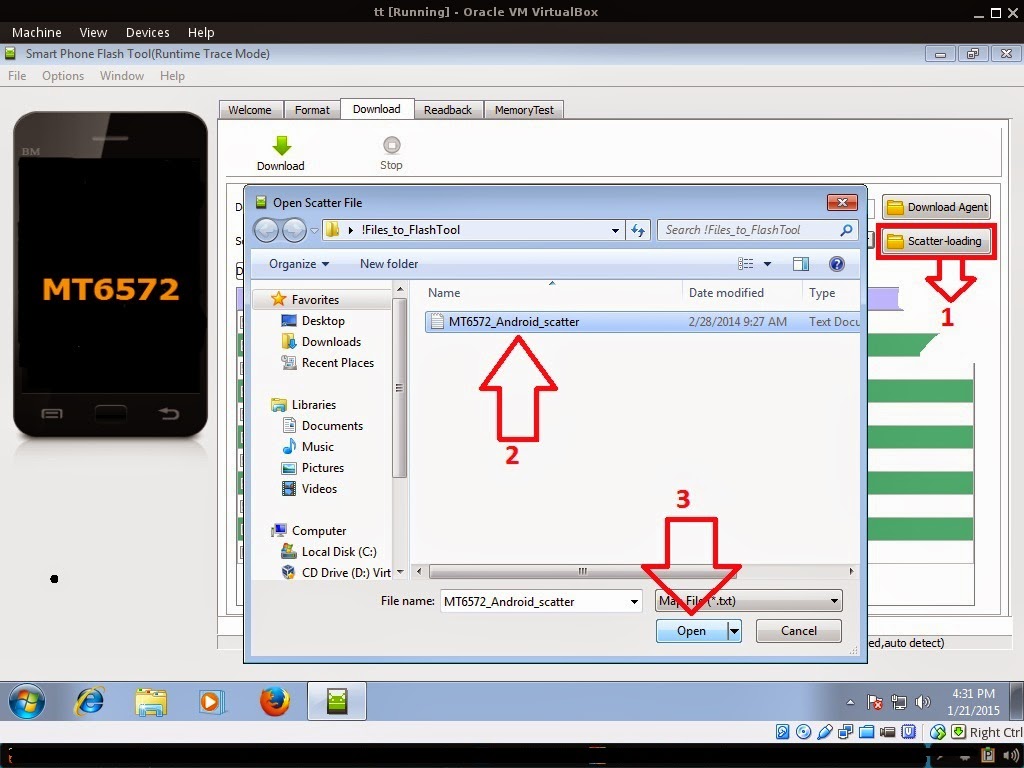
Reference Video Using FlashTool version 5.xxx (watch in HD)
3. After you load the file, UNCHECK PRELOADER only, press Press Download to Flash your Phone.
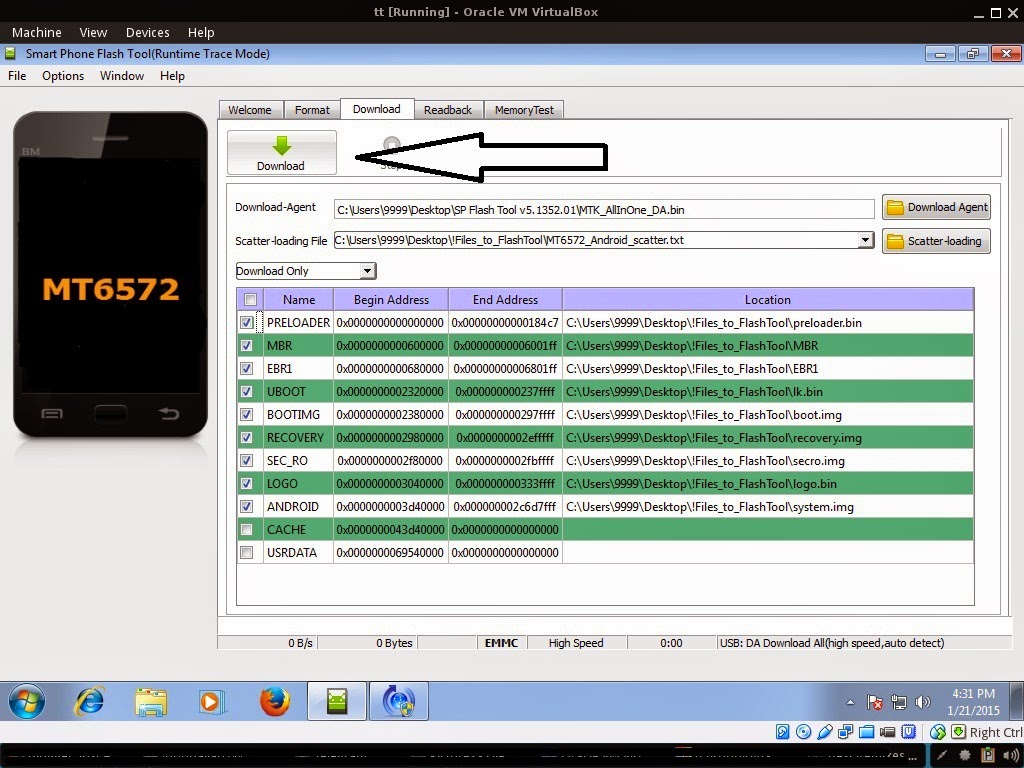
4. After you press Download Follow these steps
Some workarounds:
- Turn off your phone (always powered off is a must)
- Press and HOLD volume UP or Down or you can simply press it simultaneously
- Insert your USB cable without releasing the VOLUME button(s).
- Keep on repeating until Flashtool detected your phone.
"Hard reset your phone after flashing"
Some workarounds:
If you encounter PMT_Changed error here is what you do:
In Latest version of Flashtool
PMT_CHANGED error occur when firmware is not compatible with your phone. Sometimes your phone has a different board version. You should check it too, if your firmware is compatible with your phone.
PMT_CHANGED error occur when firmware is not compatible with your phone. Sometimes your phone has a different board version. You should check it too, if your firmware is compatible with your phone.
If you encounter Privacy Protection Password:
- Open flash_tool.exe
- Load the scatter file
- Goto Format Tab
- Click on Format except bootloader
- Press Play/Start Icon
- Then remove battery
- Insert the battery again
- Insert the USB cable (you should hear a beep on your computer, and it should proceed in formatting.)
- After done formatting proceed in Flashing.
- Goto Download tab (I assume that you loaded the scatter file already)
- Uncheck PRELOADER (this is very important)
- Press Download
- Then remove battery
- Insert Battery again
- Insert the USB cable (you should hear a beep on your computer, and it should proceed in flashing or downloading the firmware in your phone.)
- Power ON the phone after flashing.
- Restore your IMEI.
For Invalid IMEI:Your Phone/Tablet must be rooted first
Restore yong IMEI in MTKDroidTools version 2.5.3. You will have this error when you format your phone in Flashtool as I had experienced. To restore download MTKDroidTools version 2.5.3 After you extract the file. Open the green robot, you must enable the usb debugging in your phone. It is usually located in Settings>Devoloper Mode then look for usb debugging. After enabling it. Connect your phone in your computer then in MTKDroidTool click on ROOT. Wait for it to finish, then Click in IMEI/NVRAM, input 15 number in each box. Then click REPLACE. Then click Reboot or you can manually turn off your phone. Then turn your phone on again. You can see that you have fully restored your IMEI.
1. Make sure you have MTKDROIDSTOOL version 2.4.8 or version 2.5.3 (you can search it in google)
I hope this tutorial help you. Please drop a comment if something is not clear to you.
Tested by:
Me - Files / Flashing / Privacy Protection Password
I would like to give credits to those who uploaded the file online.
Go to link download
Monday, September 26, 2016
MyPhone Agua Storm Stock ROM firmware to unbrick your phone
MyPhone Agua Storm Stock ROM firmware to unbrick your phone
Hi,
This firmware is for MyPhone Agua Storm. I can assure that this firmware is working, because I have tried it myself.
Sometimes after you flash your phone you will encounter an invalid IMEI or Baseband is damaged. I will also include the NVRAM that I had back-uped so you can also fix the DAMAGE Baseband or Unknown Baseband Issue.

You can fix the following issue in your phone:
1. Bootloop
2. Damaged System UI
3. TP Upgrade only
4. Dead phone but it is detected in computer
5. Remove Gmail Account / Password / Pattern Lock (Alternative Way)
"DOWNLOAD THESE FILES"
Firmware Here -->MyPhone Agua Storm
NVRAM -- > Damage Baseband Fix
VCOM Driver -->VCOM Manual
Alternative Driver --> AutoInstaller
VCOM Driver -->VCOM Manual
Alternative Driver --> AutoInstaller
SPFlashTool --> LatestVersion
"Use WinRar or 7zip to extract the firmware"
"Extract the files to your desired folder" See picture below"
"If you encounter error in flashtool, use different version of it."
"Extract the files to your desired folder" See picture below"
"If you encounter error in flashtool, use different version of it."
"I suggest to use 32bit Windows OS for compatibility of the driver"
Installing Driver with AutoInstaller
First try the Alternative Driver, which is the AutoInstaller. Just open the install.exe then it will automatically install the driver. To fully check if the driver is correctly installed in your computer.
Follow these steps:
- Turn off your phone (always powered off is a must)
- Press and hold volume up or down, or you can simple press the two button.
- Insert your USB cable without releasing the VOLUME button(s).
- In your computer, it must detect your phone and it will install the MTK Preloader or Mediatek USB VCOM driver.
- Repeat 1 to 4 if it does not detect your phone.
- If MTK Preloader/Mediatek USB VCOM Driver is installed you are good to go in flashing your phone ^_^
Reference Video using Driver Auto Installer (watch in HD)
Installing Manually using VCOM Driver
When installing it manually your phone must be turned off, then connect it to your computer/laptop while pressing VOLUME UP or VOLUME DOWN. This will detect and look for the driver.
1. This is the first time that you will connect your phone and it will search for the correct driver.
2. Check include this location ... ... and click on browse. Look for USB VCOM Driver and Click on 2K_XP_COM folder if you are using Windows XP or Win7 for Windows 7 and then press OK when you are done picking the right folder for the driver.
3. If the driver is successfully installed MediaTek DA USB VCOM will appear in the New Hardware Wizard.
Video Installing VCOM Driver (please watch in HD)
"Your Phone must be turned off when you are ready to connect and flash your phone"
Flashing
1. Launch FlashTool (flash_tool.exe)
2. In Flashtool, Click on Scatter-Loading, and load your scatter file. (see example below)
Reference Video Using FlashTool version 5.xxx (watch in HD)
3. After you load the file, press Press Download to Flash your Phone.
4. After you press Download Follow these steps
Some workarounds:
- Turn off your phone (always powered off is a must)
- Press and HOLD volume UP or Down or you can simply press it simultaneously
- Insert your USB cable without releasing the VOLUME button(s).
- Keep on repeating until Flashtool detected your phone.
"Hard reset your phone after flashing"
Some workarounds:
If you encounter PMT_Changed error here is what you do:
In Latest version of Flashtool
- Load the scatter file
- Choose Format all + Download (Underneath Scatter-loading file)
- Then Click Download and wait until it is done flashing
For Invalid IMEI:Your Phone/Tablet must be rooted first
Restore yong IMEI in MTKDroidTools version 2.5.3. You will have this error when you format your phone in Flashtool as I had experienced. To restore download MTKDroidTools version 2.5.3 After you extract the file. Open the green robot, you must enable the usb debugging in your phone. It is usually located in Settings>Devoloper Mode then look for usb debugging. After enabling it. Connect your phone in your computer then in MTKDroidTool click on ROOT. Wait for it to finish, then Click in IMEI/NVRAM, input 15 number in each box. Then click REPLACE. Then click Reboot or you can manually turn off your phone. Then turn your phone on again. You can see that you have fully restored your IMEI.
FOR DAMAGED BASEBAND or UNKNOWN BASEBAND (Your phone must be rooted first)
1. Make sure you have MTKDROIDSTOOL version 2.4.8 or version 2.5.3 (you can search it in google)
2. In MTKDroidstool (I assume you launch the tool) -- Click in Root.
3. In your device -- After you press Root, you need to authorize it. A pop up message will appear. Click Allow/Authorize depends on your root application.
4. In MTKDroidsTool -- Click in IMEI/NVRAM, then click in RESTORE.
5. Then look for the folder where you extracted the NVRAM files.
6. Check if the Baseband is fixed. And if the IMEI is fully restored.
7. If Baseband is still Unknown and IMEI is invalid. Then you need to hard reset first your phone.
8. After hard reset your baseband should be fixed already. (base on my experience)
9. If your baseband is fixed sometimes the IMEI is still invalid. So you need to restore the IMEI.
10. To restore IMEI follow Step 1-4, but you should not restore. You should fill the IMEI then click REPLACE. Then reboot your phone. VOILA! I hope the phone is fully working :)
Restore yong IMEI in MTKDroidTools version 2.5.3. You will have this error when you format your phone in Flashtool as I had experienced. To restore download MTKDroidTools version 2.5.3 After you extract the file. Open the green robot, you must enable the usb debugging in your phone. It is usually located in Settings>Devoloper Mode then look for usb debugging. After enabling it. Connect your phone in your computer then in MTKDroidTool click on ROOT. Wait for it to finish, then Click in IMEI/NVRAM, input 15 number in each box. Then click REPLACE. Then click Reboot or you can manually turn off your phone. Then turn your phone on again. You can see that you have fully restored your IMEI.
FOR DAMAGED BASEBAND or UNKNOWN BASEBAND (Your phone must be rooted first)
1. Make sure you have MTKDROIDSTOOL version 2.4.8 or version 2.5.3 (you can search it in google)
2. In MTKDroidstool (I assume you launch the tool) -- Click in Root.
3. In your device -- After you press Root, you need to authorize it. A pop up message will appear. Click Allow/Authorize depends on your root application.
4. In MTKDroidsTool -- Click in IMEI/NVRAM, then click in RESTORE.
5. Then look for the folder where you extracted the NVRAM files.
6. Check if the Baseband is fixed. And if the IMEI is fully restored.
7. If Baseband is still Unknown and IMEI is invalid. Then you need to hard reset first your phone.
8. After hard reset your baseband should be fixed already. (base on my experience)
9. If your baseband is fixed sometimes the IMEI is still invalid. So you need to restore the IMEI.
10. To restore IMEI follow Step 1-4, but you should not restore. You should fill the IMEI then click REPLACE. Then reboot your phone. VOILA! I hope the phone is fully working :)
I hope this tutorial help you. Please drop a comment if something is not clear to you.
Tested by:
Me - Files / Flashing / NVRAM
Go to link download
Tuesday, September 13, 2016
Myphone Rio Lite Stock Rom Firmware to unbrick your phone
Myphone Rio Lite Stock Rom Firmware to unbrick your phone
Hi,
From now on I will only use the latest version of flashtool, to better understand my tutorial.
The tutorial that I am going to post today is for Myphone Agua Rio Lite. Use only the firmware for MyPhone Agua Rio Lite. I already tried this firmware. Just load the file and flash your phone. No need to change anything.

You can fix the following issue in your phone:
1. Bootloop
2. Damaged System UI
3. TP Upgrade only
4. Dead phone but it is detected in computer
5. Remove Gmail Account / Password / Pattern Lock (Alternative Way)
6. And other issues with your phones firmware
"DOWNLOAD THESE FILES"
Firmware Here -->MyPhone Agua Rio Lite Part 1
Firmware Here -->MyPhone Agua Rio Lite Part 2
Firmware Here --> MyPhone Agua Rio Lite Part 1 Mirror Devhost
Firmware Here --> MyPhone Agua Rio Lite Part 2 Mirror Devhost
VCOM Driver -->VCOM Manual
Alternative Driver --> AutoInstaller
Firmware Here --> MyPhone Agua Rio Lite Part 1 Mirror Devhost
Firmware Here --> MyPhone Agua Rio Lite Part 2 Mirror Devhost
VCOM Driver -->VCOM Manual
Alternative Driver --> AutoInstaller
SPFlashTool --> LatestVersion
"Use WinRar or 7zip to extract the firmware"
"Extract the files to your desired folder" See picture below"
"If you encounter error in flashtool, use different version of it."
"I suggest to use 32bit Windows OS for compatibility of the driver"
Installing Driver with AutoInstaller
First try the Alternative Driver, which is the AutoInstaller. Just open the install.exe then it will automatically install the driver. To fully check if the driver is correctly installed in your computer.
Follow these steps:
- Turn off your phone (always powered off is a must)
- Press and hold volume up or down, or you can simple press the two button
- Insert your USB cable without releasing the VOLUME button(s).
- In your computer, it must detect your phone and it will install the MTK Preloader or Mediatek USB VCOM driver.
- Repeat 1 to 4 if it does not detect your phone.
- If MTK Preloader/Mediatek USB VCOM Driver is installed you are good to go in flashing your phone ^_^
Reference Video using Driver Auto Installer (watch in HD)
Installing Manually using VCOM Driver
When installing it manually your phone must be turned off, then connect it to your computer/laptop while pressing VOLUME UP or VOLUME DOWN. This will detect and look for the driver.
1. This is the first time that you will connect your phone and it will search for the correct driver.
2. Check include this location ... ... and click on browse. Look for USB VCOM Driver and Click on 2K_XP_COM folder if you are using Windows XP or Win7 for Windows 7 and then press OK when you are done picking the right folder for the driver.
3. If the driver is successfully installed MediaTek DA USB VCOM will appear in the New Hardware Wizard.
Video Installing VCOM Driver (please watch in HD)
"Your Phone must be turned off when you are ready to connect and flash your phone"
Flashing
1. Launch FlashTool
2. In Flashtool, Click on Scatter-Loading, and load your scatter file. (see example below)
Reference Video Using FlashTool version 5.xxx (watch in HD)
3. After you load the file, press Press Download to Flash your Phone.
4. After you press Download Follow these steps
Some workarounds:
- Turn off your phone (always powered off is a must)
- Press and HOLD volume UP or Down or you can simply press it simultaneously
- Insert your USB cable without releasing the VOLUME button(s).
- Keep on repeating until Flashtool detected your phone.
"Hard reset your phone after flashing"
Some workarounds:
If you encounter PMT_Changed error here is what you do:
In Latest version of Flashtool
- Load the scatter file
- Choose Format all + Download (Underneath Scatter-loading file)
- Then Click Download and wait until it is done flashing
For Invalid IMEI:Your Phone/Tablet must be rooted first
Restore yong IMEI in MTKDroidTools version 2.5.3. You will have this error when you format your phone in Flashtool as I had experienced. To restore download MTKDroidTools version 2.5.3 After you extract the file. Open the green robot, you must enable the usb debugging in your phone. It is usually located in Settings>Devoloper Mode then look for usb debugging. After enabling it. Connect your phone in your computer then in MTKDroidTool click on ROOT. Wait for it to finish, then Click in IMEI/NVRAM, input 15 number in each box. Then click REPLACE. Then click Reboot or you can manually turn off your phone. Then turn your phone on again. You can see that you have fully restored your IMEI.
Restore yong IMEI in MTKDroidTools version 2.5.3. You will have this error when you format your phone in Flashtool as I had experienced. To restore download MTKDroidTools version 2.5.3 After you extract the file. Open the green robot, you must enable the usb debugging in your phone. It is usually located in Settings>Devoloper Mode then look for usb debugging. After enabling it. Connect your phone in your computer then in MTKDroidTool click on ROOT. Wait for it to finish, then Click in IMEI/NVRAM, input 15 number in each box. Then click REPLACE. Then click Reboot or you can manually turn off your phone. Then turn your phone on again. You can see that you have fully restored your IMEI.
I hope this tutorial help you. Please drop a comment if something is not clear to you.
Tested by:
Me
Jim (Comment box)
Go to link download
Friday, August 19, 2016
Hard Reset your MyPhone Rio 2 and remove password pattern lock gmail account
Hard Reset your MyPhone Rio 2 and remove password pattern lock gmail account
This tutorial is for MyPhone Rio 2. I have a text format on how to hard reset this phone. I also have a video tutorial that I uploaded at YouTube.

Hopefully this tutorial will help you to unlock or fix your phone.
Hard resetting / factory resetting your phone will solve the following issues:
1. If you forgot your pattern lock
2. If you forgot your gmail account
3. If you forgot your password
4. Apps that automatically force closing
5. Stuck in MyPhone Logo (sometimes does not work if the firmware is totally damage)
NOTE: Performing hard reset will erase your data.
To hard reset:
1. Turn off your phone
2. Press and Hold Volume UP + Power Button simultaneously. Keep holding the buttons until the phone power up.
3. An android Robot with red exclamation mark will appear. Press POWER button to activate Android System Recovery
4. Select wipe data / factory reset, then YES -- delete all user data, press Volume rocker to navigate and press the VOLUME UP to confirm the selection
5. Reboot your phone.
Video Tutorial
Note:
If performing hard reset did not succeed, you need to wipe the cache first in the android system recovery before performing wipe / factory
reset.
I hope this tutorial helps you.. If you have any question just drop a comment.
Go to link download
MyPhone Agua Rain 2G V1 firmware stock rom to unbrick your phone
MyPhone Agua Rain 2G V1 firmware stock rom to unbrick your phone
Hi,
This firmware is for MyPhone Agua Rain 2G. This phone has an MTK chip. This firmware is compatible with board version 1.

The firmware is not rooted. If you want to root this phone you can use Kingroot or vRoot for PC
1. Bootloop
2. Damaged System UI
3. TP Upgrade only
4. Dead phone but it is detected in computer
5. Remove Gmail Account / Password / Pattern Lock (Alternative Way)
6. Privacy Protection Password Lock up
"DOWNLOAD THESE FILES"
Firmware Here -->MyPhone Agua Rain 2g
VCOM Driver -->VCOM Manual
Alternative Driver --> AutoInstaller
Alternative Driver --> AutoInstaller
SPFlashTool --> LatestVersion
"Use WinRar or 7zip to extract the firmware"
"Extract the files to your desired folder"
"If you encounter error in flashtool, use different version of it."
"Extract the files to your desired folder"
"If you encounter error in flashtool, use different version of it."
"I suggest to use 32bit Windows OS for compatibility of the driver"
Installing Driver with AutoInstaller
First try the Alternative Driver, which is the AutoInstaller. Just open the install.exe then it will automatically install the driver. To fully check if the driver is correctly installed in your computer.
Follow these steps:
- Turn off your phone (always powered off is a must)
- Press and hold volume up or down, or you can simple press the two button.
- Insert your USB cable without releasing the VOLUME button(s).
- In your computer, it must detect your phone and it will install the MTK Preloader or Mediatek USB VCOM driver.
- Repeat 1 to 4 if it does not detect your phone.
- If MTK Preloader/Mediatek USB VCOM Driver is installed you are good to go in flashing your phone ^_^
Reference Video using Driver Auto Installer (watch in HD)
Installing Manually using VCOM Driver
When installing it manually your phone must be turned off, then connect it to your computer/laptop while pressing VOLUME UP or VOLUME DOWN. This will detect and look for the driver.
1. This is the first time that you will connect your phone and it will search for the correct driver.
2. Check include this location ... ... and click on browse. Look for USB VCOM Driver and Click on 2K_XP_COM folder if you are using Windows XP or Win7 for Windows 7 and then press OK when you are done picking the right folder for the driver.
3. If the driver is successfully installed MediaTek DA USB VCOM will appear in the New Hardware Wizard.
Video Installing VCOM Driver (please watch in HD)
"Your Phone must be turned off when you are ready to connect and flash your phone"
Flashing1. Launch FlashTool (flash_tool.exe)
2. In Flashtool, Click on Scatter-Loading, and load your scatter file. (see example below)
Reference Video Using FlashTool version 5.xxx (watch in HD)
3. After you load the file, UNCHECK PRELOADER only, press Press Download to Flash your Phone.
4. After you press Download Follow these steps
Some workarounds:
- Turn off your phone (always powered off is a must)
- Press and HOLD volume UP or Down or you can simply press it simultaneously
- Insert your USB cable without releasing the VOLUME button(s).
- Keep on repeating until Flashtool detected your phone.
"Hard reset your phone after flashing"
Some workarounds:
If you encounter PMT_Changed error here is what you do:
In Latest version of Flashtool
PMT_CHANGED error occur when firmware is not compatible with your phone. Sometimes your phone has a different board version. You should check it too, if your firmware is compatible with your phone.
PMT_CHANGED error occur when firmware is not compatible with your phone. Sometimes your phone has a different board version. You should check it too, if your firmware is compatible with your phone.
If you encounter Privacy Protection Password:
- Open flash_tool.exe
- Load the scatter file
- Goto Format Tab
- Click on Format except bootloader
- Press Play/Start Icon
- Then remove battery
- Insert the battery again
- Insert the USB cable (you should hear a beep on your computer, and it should proceed in formatting.)
- After done formatting proceed in Flashing.
- Goto Download tab (I assume that you loaded the scatter file already)
- Uncheck PRELOADER (this is very important)
- Press Download
- Then remove battery
- Insert Battery again
- Insert the USB cable (you should hear a beep on your computer, and it should proceed in flashing or downloading the firmware in your phone.)
- Power ON the phone after flashing.
- Restore your IMEI.
For Invalid IMEI:Your Phone/Tablet must be rooted first
Restore yong IMEI in MTKDroidTools version 2.5.3. You will have this error when you format your phone in Flashtool as I had experienced. To restore download MTKDroidTools version 2.5.3 After you extract the file. Open the green robot, you must enable the usb debugging in your phone. It is usually located in Settings>Devoloper Mode then look for usb debugging. After enabling it. Connect your phone in your computer then in MTKDroidTool click on ROOT. Wait for it to finish, then Click in IMEI/NVRAM, input 15 number in each box. Then click REPLACE. Then click Reboot or you can manually turn off your phone. Then turn your phone on again. You can see that you have fully restored your IMEI.
1. Make sure you have MTKDROIDSTOOL version 2.4.8 or version 2.5.3 (you can search it in google)
I hope this tutorial help you. Please drop a comment if something is not clear to you.
Tested by:
Me - Files / Flashing
Go to link download
Subscribe to:
Posts (Atom)