
Showing posts with label usb. Show all posts
Showing posts with label usb. Show all posts
Sunday, October 16, 2016
HOW TO MAKE Easy Cable RJ45 To USB converter For Volcano Tested On SPD 6531
HOW TO MAKE Easy Cable RJ45 To USB converter For Volcano Tested On SPD 6531
HOW TO MAKE Easy Cable RJ45 To USB converter For Volcano(Tested On SPD 6531)
Requirement
(1)usb cable NOKIA 5130
(2)any RJ45 Cable
(3)Iron
(4)Solding Wire
first remove usb jig FROM USB CABLE and sold with any rj45 cable All five wire .volcano box will detect auto pin D+ D-

MAKE THIS TYPE EASY CABLE OTHER JIGS AND TEST IT WITH VOLCANO BOX AND SHEAR HERE YOUR EXPERIENCE
VIDEO LINK
Easy Cable RJ45 To USB converter For Volcano - Download - 4shared
http://www.4shared.com/rar/BC2UC61N/...B_convert.html

rj45 tx rx find to easy .
but rj45 usb D+ D- how to do
pls clear which rj45 8pin use usb 5 pin.

Go to link download

Tuesday, September 27, 2016
Best 4 Tip To Speedup Pendrive USB Data Transfer Rate
Best 4 Tip To Speedup Pendrive USB Data Transfer Rate
The transfer late of my USB stick was killing me every time when i was using for transferring data from one Computer to another. And was Wondering what was the causes, and how to fix it for the best performance again. I try the following List of solution to retrieve the original transfer speed of My USB SanDisk 8GB.
Pen drives or USB are quite popular in the digital world for instant
transfer of data. Using USB flash drives, one can easily transfer large
 files from one PC to another, from PC to laptop, from laptop to TV,
and vice versa. This latest technology has made our work easier than before.
In current times, you can move Gigabytes of information into just a tiny
pen drive within few seconds.
In recent years, a lot of changes has been made in storage devices.
When you compare new pen drives with the older ones, you will notice a
considerable high transfer rate in the latest ones. However, there are
times when you can get irritated with slow transfer speed of pen drives
while copying data in pen drives. Well, this article shall provide you
with some tricks using which you can Speedup Pendrive Data Transfer Rate
Well, this is common for any device that when it becomes
old, the rates gets slower.
2.Type of files:
The transfer rate of data also depends on the file type;
you might have noticed that songs, videos and documents take very less time
in transfer while application files need more time.
3.USB port version:
The most popular version of USB is 2.0, and it will give you 35mbps speed.
So, if you want fast speed then buy 2.0 version pen drives.
1.File system should be NTFS:
If you want to Speedup Pendrive , then make sure you have NTFS as file system.
You can do so by Right clicking on your pendrive and selecting Format,Select
NTFS File system, Uncheck Quick Format And Click On Start.
2.Disk errors:
To check disk errors go to the properties tab of your pen drive,
then select ‘tools’ tab. You will find a ‘check now’ button, click it and then
hit ‘start’ to fix the errors. The time taken for scan depends on the size of
the pen drive.

3.Device policy:
Under properties of your pen drive, select ‘hardware’ tab. Then select USB
device from there that will lead you to a pop up window where you need to
change settings. You can even have better performance of pen drive by clicking
the option under ‘hardware’ tab.
4.Format:
This is one of the effective options that many users have tried. When you have
used your pen drive for quite a long time, you can speed it up by formatting the
device.
Pen drives or USB are quite popular in the digital world for instant
transfer of data. Using USB flash drives, one can easily transfer large
 files from one PC to another, from PC to laptop, from laptop to TV,
and vice versa. This latest technology has made our work easier than before.
In current times, you can move Gigabytes of information into just a tiny
pen drive within few seconds.
In recent years, a lot of changes has been made in storage devices.
When you compare new pen drives with the older ones, you will notice a
considerable high transfer rate in the latest ones. However, there are
times when you can get irritated with slow transfer speed of pen drives
while copying data in pen drives. Well, this article shall provide you
with some tricks using which you can Speedup Pendrive Data Transfer Rate
Factors responsible for data transfer rate
1.Pen drive ageing: Well, this is common for any device that when it becomes
old, the rates gets slower.
2.Type of files:
The transfer rate of data also depends on the file type;
you might have noticed that songs, videos and documents take very less time
in transfer while application files need more time.
3.USB port version:
The most popular version of USB is 2.0, and it will give you 35mbps speed.
So, if you want fast speed then buy 2.0 version pen drives.
Few tricks to Speedup Pendrive Data Transfer Rate:
1.File system should be NTFS:
If you want to Speedup Pendrive , then make sure you have NTFS as file system.
You can do so by Right clicking on your pendrive and selecting Format,Select
NTFS File system, Uncheck Quick Format And Click On Start.
2.Disk errors:
To check disk errors go to the properties tab of your pen drive,
then select ‘tools’ tab. You will find a ‘check now’ button, click it and then
hit ‘start’ to fix the errors. The time taken for scan depends on the size of
the pen drive.

3.Device policy:
Under properties of your pen drive, select ‘hardware’ tab. Then select USB
device from there that will lead you to a pop up window where you need to
change settings. You can even have better performance of pen drive by clicking
the option under ‘hardware’ tab.
4.Format:
This is one of the effective options that many users have tried. When you have
used your pen drive for quite a long time, you can speed it up by formatting the
device.
Carefully test your pen drive with the factors given above to Speedup Pendrive.
In addition to this, you should keep checking for these aspects regularly, say
twice or thrice in a month.
Go to link download
Thursday, September 8, 2016
Apple iphone USB Cable Pinout
Apple iphone USB Cable Pinout
Apple iphone USB Cable Pinout
Go to link download
Friday, September 2, 2016
SPD 6531 All Spd imei Write With New Magic Usb Cable
SPD 6531 All Spd imei Write With New Magic Usb Cable
HOW TO MAKE SPD IMEI WRITE Cable - only disconnect usb + supply (vcc) your cable is ready


Write imei usb disconnect usb + supply (vcc)
usb cable connect only D+ D- GND
1-go to spd tab
2-R/W IMEI chooses com
3-untick auto detect pinout
4-press these key from keybord to enable imei alt+ctrl+i
5-click on write imei
6-click run
7-new window will be open
8-choose usb NOT SELECT ANY COM PORT
9-write imei in box
10-insert usb cable in mobile without battery
11-click on write imei
12- then insert battery, no need press any boot key and wait 10 secnd
imei write successfully
Go to link download
Tuesday, August 16, 2016
How to Install Windows from USB Disk
How to Install Windows from USB Disk
Today Im gonna share a very useful tip with you. In this post, you will learn - how to create a bootable USB disk (pen drive) for Windows/ Linux. And this is the easiest way to install Windows from USB disk. Earlier, I wrote about creating bootable Windows disk.
If your PC doesnt have a DVD drive, or if your DVD drive is not functioning properly, you can use your pen drive to install Windows. And notebooks dont have DVD drive usually. To install Windows there, you must require a bootable pen drive.
This post applies to:
- Windows 7
- Windows 8
- Windows 8.1
I havent tested this technique for Windows XP. Maybe this will also work there. But Im not 100% sure about XP.
In order to install Windows from USB Flash Drive, you need the following tools:
- A USB Flash Drive/ Pen Drive (8 GB Recommended)
- Windows ISO Image
- Rufus - to create bootable USB disk
Step 1 - Get Windows ISO Image
Hopefully, all of you got an 8 GB pen drive. Now your task is to get an ISO image of your Windows. If you have a Windows Installation disk, you can prepare the ISO file using ISO Creator or by Infra Recorder.
Step 2 - Create Bootable Disk
Now youve to create a bootable flash drive by Rufus. And then youre ready to install Windows from pen drive! Download Rufus from this link. Its just 616 KB.
- Insert your pen drive. Back up the necessary files of it (if any). And perform a quick format.
- Run Rufus from your PC just by double click.
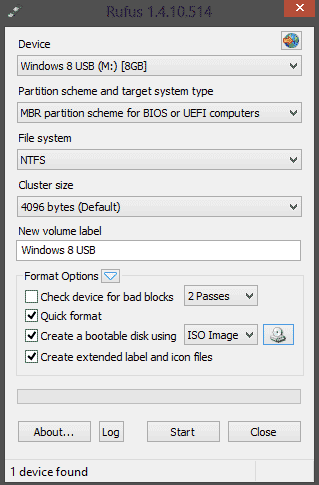
- Device - Your pen drive, Partition Scheme - for BIOS and UEFI, File System - NTFS, Cluster Size - Default, Type your Windows Name in Volume > Choose Quick Format > Create a Bootable Disk using ISO Image > Hit on the CD icon and locate your ISO file > Select Extended Labels and Icon Files > Hit on the Start button to launch the operation.
- This may take a few minutes. Then you will get a confirmation message. Done!
You can follow the image below:
Step 3 - Boot from USB Flash Drive
Restart your system. To access BIOS settings, you need to press F1 in case of Intel Mainboard. Gigabyte users will press Del key. And most other mainboards use F1 key to access to the BIOS utility.
Now depending on your BIOS version, there could be different interface styles. But the basic option you need to find is - The Boot Priority or The Boot Order.
To install the Windows from a USB disk, you need to select - Boot from USB Drive. Now Save and Exit from BIOS. Restart your PC. Now you will see the following message -
Press any key to boot from USB...
Now press enter to start installing Windows from USB disk! If you face any problem, please leave a comment . . .
Wait a Minute!
Wait a Minute!
When your PC copies files from the disk and restarts, the installation process may start again. If this happens to you, simply remove your pen drive and continue the installation process.
Stay with Marks PC Solution to get more interesting IT topics!
Go to link download
Subscribe to:
Posts (Atom)