Showing posts with label tablet. Show all posts
Showing posts with label tablet. Show all posts
Saturday, October 15, 2016
Board ID Inet 86vz rev03 firmware to unbrick your tablet
Board ID Inet 86vz rev03 firmware to unbrick your tablet
This firmware is for BOARD ID Inet 86vz rev03. This tablet usually have a A13 cpu or chip. Already tried this firmware and it is working well. Back Camera, Front Camera, Sensors, Wifi all is working. If something is not working in your tablet then maybe it is not supported in this firmware. So just try another firmware ;)

Phoenixsuit -->Download Phoenixsuit Here
Firmware --> Board ID Inet 86vz rev03 Part 1
Firmware --> Board ID Inet 86vz rev03 Part 2
Firmware --> Board ID Inet 86vz rev03 Part 3
"You can use file joiner or 7zip to extract the file"
For tutorial on how to flash your tablet, when you download phoenixsuit. The tutorial is in there. Credits to AndroidXDA for the tutorial. I cant write a tutorial as of the moment because I do not have a tablet to flash.
Go to link download

Tuesday, October 4, 2016
China Tablet Galaxy Tab S5 KT072G stock rom firmware to unbrick your tablet
China Tablet Galaxy Tab S5 KT072G stock rom firmware to unbrick your tablet
Hi,
This firmware is for China Tablet. The name of the this tablet is Samsung Galaxy Tab S5.
If you can still read the info in MTK Droids Tool, the tablet Model is KT072G.

If you can still read the info in MTK Droids Tool, the tablet Model is KT072G.
The firmware is not rooted. If you want to root this phone you can use Kingroot or vRoot for PC.
The firmware is Clockworkmod ready. You can also use the factory/stock recovery. Just use the factory_nomodify_recovery.img
The firmware is Clockworkmod ready. You can also use the factory/stock recovery. Just use the factory_nomodify_recovery.img
1. Bootloop
2. Damaged System UI
3. TP Upgrade only
4. Dead phone but it is detected in computer
5. Remove Gmail Account / Password / Pattern Lock (Alternative Way)
6. Privacy Protection Password Lock up
"DOWNLOAD THESE FILES"
Firmware Here -->KT072G Chinatab GalaxyTabS5 Part 1
Firmware Here -->KT072G Chinatab GalaxyTabS5 Part 2
Firmware Here -->KT072G Chinatab GalaxyTabS5 Part 3
VCOM Driver -->VCOM Manual
Alternative Driver --> AutoInstaller
Alternative Driver --> AutoInstaller
SPFlashTool --> LatestVersion
"Use WinRar or 7zip to extract the firmware"
"Extract the files to your desired folder"
"If you encounter error in flashtool, use different version of it."
"Extract the files to your desired folder"
"If you encounter error in flashtool, use different version of it."
"I suggest to use 32bit Windows OS for compatibility of the driver"
Installing Driver with AutoInstaller
First try the Alternative Driver, which is the AutoInstaller. Just open the install.exe then it will automatically install the driver. To fully check if the driver is correctly installed in your computer.
Follow these steps:
- Turn off your phone (always powered off is a must)
- Press and hold volume up or down, or you can simple press the two button.
- Insert your USB cable without releasing the VOLUME button(s).
- In your computer, it must detect your phone and it will install the MTK Preloader or Mediatek USB VCOM driver.
- Repeat 1 to 4 if it does not detect your phone.
- If MTK Preloader/Mediatek USB VCOM Driver is installed you are good to go in flashing your phone ^_^
Reference Video using Driver Auto Installer (watch in HD)
Installing Manually using VCOM Driver
When installing it manually your phone must be turned off, then connect it to your computer/laptop while pressing VOLUME UP or VOLUME DOWN. This will detect and look for the driver.

1. This is the first time that you will connect your phone and it will search for the correct driver.

2. Check include this location ... ... and click on browse. Look for USB VCOM Driver and Click on 2K_XP_COM folder if you are using Windows XP or Win7 for Windows 7 and then press OK when you are done picking the right folder for the driver.

3. If the driver is successfully installed MediaTek DA USB VCOM will appear in the New Hardware Wizard.
Video Installing VCOM Driver (please watch in HD)
"Your Phone must be turned off when you are ready to connect and flash your phone"
Flashing1. Launch FlashTool (flash_tool.exe)
2. In Flashtool, Click on Scatter-Loading, and load your scatter file. (see example below)
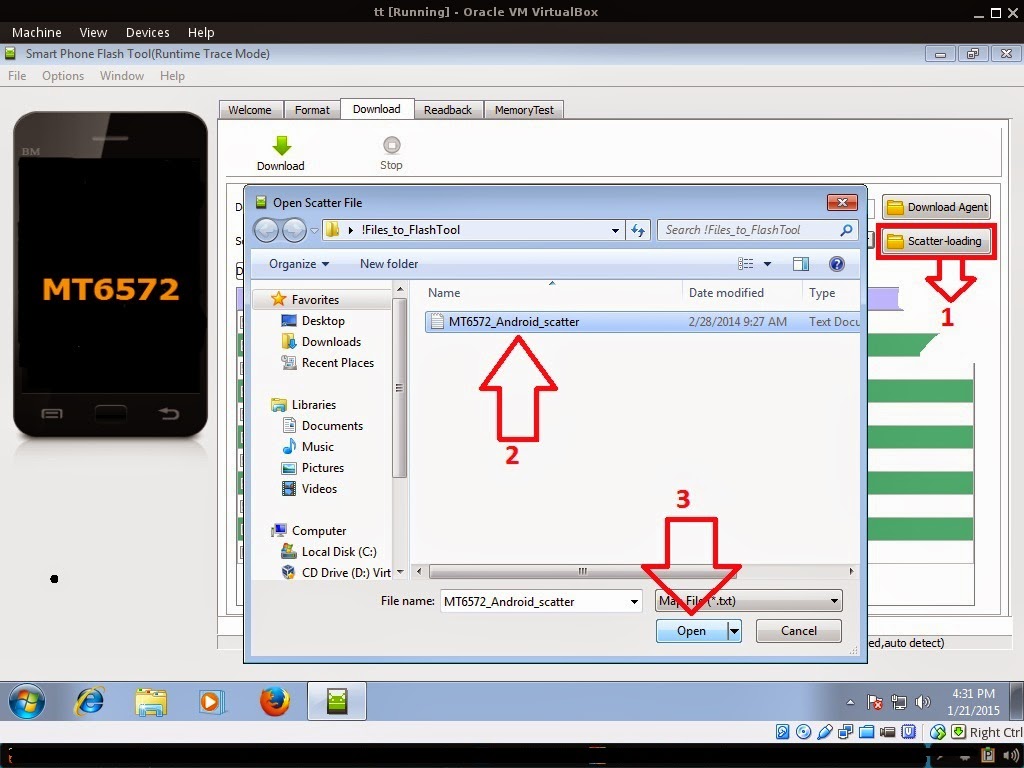
Reference Video Using FlashTool version 5.xxx (watch in HD)
3. After you load the file, UNCHECK PRELOADER only, press Press Download to Flash your Phone.
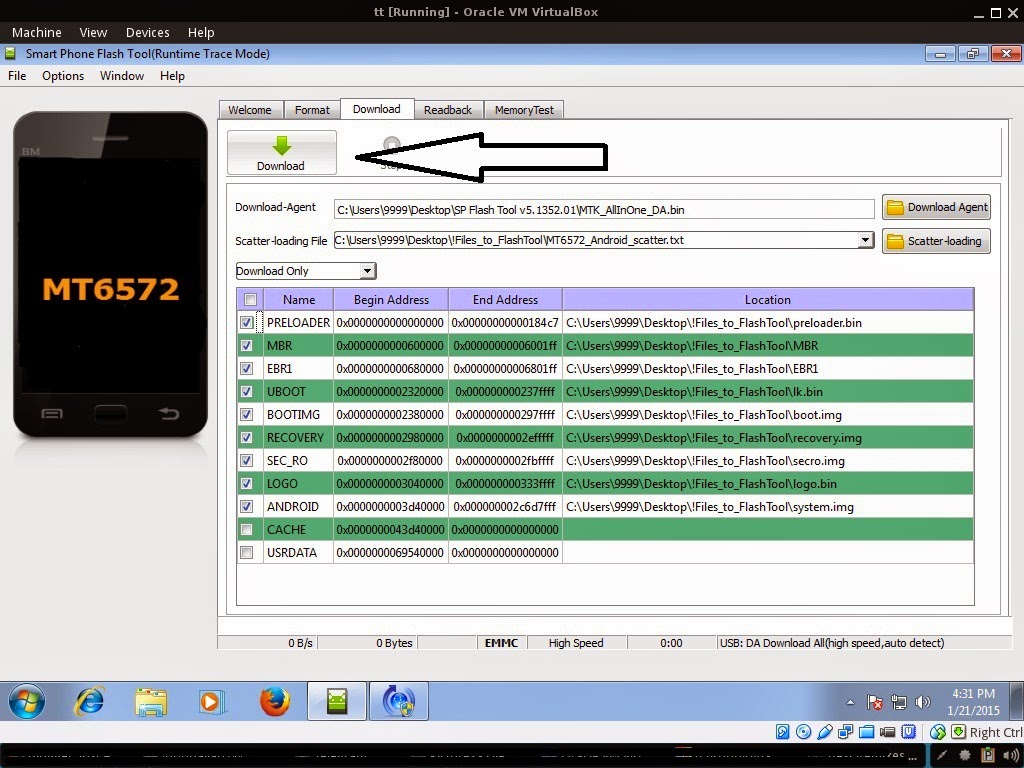
4. After you press Download Follow these steps
Some workarounds:
- Turn off your phone (always powered off is a must)
- Press and HOLD volume UP or Down or you can simply press it simultaneously
- Insert your USB cable without releasing the VOLUME button(s).
- Keep on repeating until Flashtool detected your phone.
"Hard reset your phone after flashing"
Some workarounds:
If you encounter PMT_Changed error here is what you do:
In Latest version of Flashtool
PMT_CHANGED error occur when firmware is not compatible with your phone. Sometimes your phone has a different board version. You should check it too, if your firmware is compatible with your phone.
PMT_CHANGED error occur when firmware is not compatible with your phone. Sometimes your phone has a different board version. You should check it too, if your firmware is compatible with your phone.
If you encounter Privacy Protection Password:
- Open flash_tool.exe
- Load the scatter file
- Goto Format Tab
- Click on Format except bootloader
- Press Play/Start Icon
- Then remove battery
- Insert the battery again
- Insert the USB cable (you should hear a beep on your computer, and it should proceed in formatting.)
- After done formatting proceed in Flashing.
- Goto Download tab (I assume that you loaded the scatter file already)
- Uncheck PRELOADER (this is very important)
- Press Download
- Then remove battery
- Insert Battery again
- Insert the USB cable (you should hear a beep on your computer, and it should proceed in flashing or downloading the firmware in your phone.)
- Power ON the phone after flashing.
- Restore your IMEI.
For Invalid IMEI:Your Phone/Tablet must be rooted first
Restore yong IMEI in MTKDroidTools version 2.5.3. You will have this error when you format your phone in Flashtool as I had experienced. To restore download MTKDroidTools version 2.5.3 After you extract the file. Open the green robot, you must enable the usb debugging in your phone. It is usually located in Settings>Devoloper Mode then look for usb debugging. After enabling it. Connect your phone in your computer then in MTKDroidTool click on ROOT. Wait for it to finish, then Click in IMEI/NVRAM, input 15 number in each box. Then click REPLACE. Then click Reboot or you can manually turn off your phone. Then turn your phone on again. You can see that you have fully restored your IMEI.
1. Make sure you have MTKDROIDSTOOL version 2.4.8 or version 2.5.3 (you can search it in google)
I hope this tutorial help you. Please drop a comment if something is not clear to you.
Go to link download
Tuesday, September 20, 2016
Board ID T736 V2 3 Firmware to unbrick your tablet
Board ID T736 V2 3 Firmware to unbrick your tablet
This firmware is for BOARD ID T736 V2.3. This tablet usually have a A23 cpu or chip. Already tried this firmware and it is working well. Back Camera, Front Camera, Sensors, Wifi all is working. If something is not working in your tablet then maybe it is not supported in this firmware. So just try another firmware ;)

Phoenixsuit -->Download Phoenixsuit Here
Firmware --> Board ID T736 V2.3
For tutorial on how to flash your tablet, when you download phoenixsuit. The tutorial is in there. Credits to AndroidXDA for the tutorial. I cant write a tutorial as of the moment because I do not have a tablet to flash.
Go to link download
Board ID ET Q8v1 6 to firmware unbrick your tablet
Board ID ET Q8v1 6 to firmware unbrick your tablet
This tutorial is for a different tablet, I will just replace the firmware.

This will also work in ZH&K Sapphire.
You can fix the following issue:
- Bootloop
- Softbrick
- Forced Closing Apps
- Hang in Logo
This firmware is for BOARD ID T736 V2.3. This tablet usually have a A23 cpu or chip. Already tried this firmware and it is working well. Back Camera, Front Camera, Sensors, Wifi all is working. If something is not working in your tablet then maybe it is not supported in this firmware. So just try another firmware ;)
Phoenixsuit -->Download Phoenixsuit Here
Firmware --> ZH&K Sapphire
For tutorial on how to flash your tablet, when you download phoenixsuit. The tutorial is in there. Credits to AndroidXDA for the tutorial. I cant write a tutorial as of the moment because I do not have a tablet to flash.
Go to link download
Torque Droidz Edge firmware stock ROM to unbrick your tablet
Torque Droidz Edge firmware stock ROM to unbrick your tablet
This tutorial is originally from BOARD ID Inet Rev86vz. I just wanted to be more specific with this post. This firmware will in Torque Droidz Edge+.
This firmware is for BOARD ID Inet Rev86vz. This tablet usually have a A13 cpu or chip. Already tried this firmware and it is working well. Back Camera, Front Camera, Sensors, Wifi all is working. If something is not working in your tablet then maybe it is not supported in this firmware. So just try another firmware ;)
Phoenixsuit -->Download Phoenixsuit Here
Firmware --> Board ID Inet 86vz rev03 Part 1
Firmware --> Board ID Inet 86vz rev03 Part 2
Firmware --> Board ID Inet 86vz rev03 Part 3
"You can use file joiner or 7zip to extract the file"
For tutorial on how to flash your tablet, when you download phoenixsuit. The tutorial is in there. Credits to AndroidXDA for the tutorial. I cant write a tutorial as of the moment because I do not have a tablet to flash.
Go to link download
Saturday, September 17, 2016
BS Mobile Neptuney firmware stock rom to unbrick your tablet
BS Mobile Neptuney firmware stock rom to unbrick your tablet
I havent posted a firmware in a week already, so today Im going to post a ROM. The firmware is compatible with BS MOBILE Neptuney. The board version is ET-86V2G-V1.1 but the firmware is for board version ET-86V2G-V1.2. Using the firmware did not cause any unwanted issue.

"Download these files"Phoenixsuit -->Download Phoenixsuit Here
Firmware --> BS MOBILE Neptuney Part 1
Firmware --> BS MOBILE Neptuney Part 2
Firmware --> BS MOBILE Neptuney Part 3
"You can use your favorite archive manager for RAR format
You can use 7zip or File Joiner for .001 file format"
For tutorial on how to flash your tablet, when you download phoenixsuit. The tutorial is in there. Credits to AndroidXDA for the tutorial. I cant write a tutorial as of the moment because I do not have a tablet to flash.
Go to link download
Saturday, September 10, 2016
ZH K Sapphire firmware stock rom to unbrick your tablet
ZH K Sapphire firmware stock rom to unbrick your tablet
This tutorial is for a different tablet, I will just replace the firmware.
This will also work in ZH&K Sapphire.
You can fix the following issue:
- Bootloop
- Softbrick
- Forced Closing Apps
- Hang in Logo
This firmware is for BOARD ID T736 V2.3. This tablet usually have a A23 cpu or chip. Already tried this firmware and it is working well. Back Camera, Front Camera, Sensors, Wifi all is working. If something is not working in your tablet then maybe it is not supported in this firmware. So just try another firmware ;)
Phoenixsuit -->Download Phoenixsuit Here
Firmware --> ZH&K Sapphire
For tutorial on how to flash your tablet, when you download phoenixsuit. The tutorial is in there. Credits to AndroidXDA for the tutorial. I cant write a tutorial as of the moment because I do not have a tablet to flash.
Go to link download
Tuesday, September 6, 2016
Board ID ET 86V2G V1 1 stock rom firmware to unbrick your tablet
Board ID ET 86V2G V1 1 stock rom firmware to unbrick your tablet
This post is a copy paste from my BS Mobile Neptuney post.
I havent posted a firmware in a week already, so today Im going to post a ROM. The firmware is compatible with BS MOBILE Neptuney. The board version is ET-86V2G-V1.1 but the firmware is for board version ET-86V2G-V1.2. Using the firmware did not cause any unwanted issue.

"Download these files"I havent posted a firmware in a week already, so today Im going to post a ROM. The firmware is compatible with BS MOBILE Neptuney. The board version is ET-86V2G-V1.1 but the firmware is for board version ET-86V2G-V1.2. Using the firmware did not cause any unwanted issue.
Phoenixsuit -->Download Phoenixsuit Here
Firmware --> BS MOBILE Neptuney Part 1
Firmware --> BS MOBILE Neptuney Part 2
Firmware --> BS MOBILE Neptuney Part 3
"You can use your favorite archive manager for RAR format
You can use 7zip or File Joiner for .001 file format"
For tutorial on how to flash your tablet, when you download phoenixsuit. The tutorial is in there. Credits to AndroidXDA for the tutorial. I cant write a tutorial as of the moment because I do not have a tablet to flash.
Go to link download
Monday, September 5, 2016
Cherry Mobile Paladin Plus firmware stock rom to unbrick your tablet
Cherry Mobile Paladin Plus firmware stock rom to unbrick your tablet
Hi,
Atlast I am done uploading the firmware for Cherry Mobile Paladin Plus. This firmware already have a CWM ready to flash.
The firmware is not rooted. You can however root this tablet using vRoot.

You can fix the following issue in your device:
1. Bootloop
2. Damaged System UI
3. TP Upgrade only
4. Dead device but it is detected in computer
5. Remove Gmail Account / Password / Pattern Lock (Alternative Way)
"DOWNLOAD THESE FILES"
Firmware Here -->Cherry Mobile Paladin Plus Part 1
Firmware Here -->Cherry Mobile Paladin Plus Part 2
Firmware Here -->Cherry Mobile Paladin Plus Part 3
VCOM Driver -->VCOM Manual
Alternative Driver --> AutoInstaller
Firmware Here -->Cherry Mobile Paladin Plus Part 3
VCOM Driver -->VCOM Manual
Alternative Driver --> AutoInstaller
SPFlashTool --> LatestVersion
"Use WinRar or 7zip to extract the firmware"
"Extract the files to your desired folder"
"If you encounter error in flashtool, use different version of it."
"Extract the files to your desired folder"
"If you encounter error in flashtool, use different version of it."
"I suggest to use 32bit Windows OS for compatibility of the driver"
Installing Driver with AutoInstaller
First try the Alternative Driver, which is the AutoInstaller. Just open the install.exe then it will automatically install the driver. To fully check if the driver is correctly installed in your computer.
Follow these steps:
- Turn off your device (always powered off is a must)
- Press and hold volume up or down, or you can simple press the two button.
- Insert your USB cable without releasing the VOLUME button(s).
- In your computer, it must detect your device and it will install the MTK Preloader or Mediatek USB VCOM driver.
- Repeat 1 to 4 if it does not detect your device.
- If MTK Preloader/Mediatek USB VCOM Driver is installed you are good to go in flashing your device ^_^
Reference Video using Driver Auto Installer (watch in HD)
Installing Manually using VCOM Driver
When installing it manually your device must be turned off, then connect it to your computer/laptop while pressing VOLUME UP or VOLUME DOWN. This will detect and look for the driver.
1. This is the first time that you will connect your device and it will search for the correct driver.
2. Check include this location ... ... and click on browse. Look for USB VCOM Driver and Click on 2K_XP_COM folder if you are using Windows XP or Win7 for Windows 7 and then press OK when you are done picking the right folder for the driver.
3. If the driver is successfully installed MediaTek DA USB VCOM will appear in the New Hardware Wizard.
Video Installing VCOM Driver (please watch in HD)
"Your device must be turned off when you are ready to connect and flash your device"
Flashing
1. Launch FlashTool (flash_tool.exe)
2. In Flashtool, Click on Scatter-Loading, and load your scatter file. (see example below)
Reference Video Using FlashTool version 5.xxx (watch in HD)
3. After you load the file, press Press Download to Flash your device.
4. After you press Download Follow these steps
Some workarounds:
- Turn off your device (always powered off is a must)
- Press and HOLD volume UP or Down or you can simply press it simultaneously
- Insert your USB cable without releasing the VOLUME button(s).
- Keep on repeating until Flashtool detected your device.
"Hard reset your device after flashing"
Some workarounds:
If you encounter PMT_Changed error here is what you do:
In Latest version of Flashtool
- Load the scatter file
- Choose Format all + Download (Underneath Scatter-loading file)
- Then Click Download and wait until it is done flashing
For Invalid IMEI:Your Phone/Tablet must be rooted first
Restore yong IMEI in MTKDroidTools version 2.5.3. You will have this error when you format your device in Flashtool as I had experienced. To restore download MTKDroidTools version 2.5.3 After you extract the file. Open the green robot, you must enable the usb debugging in your device. It is usually located in Settings>Devoloper Mode then look for usb debugging. After enabling it. Connect your device in your computer then in MTKDroidTool click on ROOT. Wait for it to finish, then Click in IMEI/NVRAM, input 15 number in each box. Then click REPLACE. Then click Reboot or you can manually turn off your device. Then turn your device on again. You can see that you have fully restored your IMEI.
FOR DAMAGED BASEBAND or UNKNOWN BASEBAND (Your device must be rooted first)
1. Make sure you have MTKDROIDSTOOL version 2.4.8 or version 2.5.3 (you can search it in google)
2. In MTKDroidstool (I assume you launch the tool) -- Click in Root.
3. In your device -- After you press Root, you need to authorize it. A pop up message will appear. Click Allow/Authorize depends on your root application.
4. In MTKDroidsTool -- Click in IMEI/NVRAM, then click in RESTORE.
5. Then look for the folder where you extracted the NVRAM files.
6. Check if the Baseband is fixed. And if the IMEI is fully restored.
7. If Baseband is still Unknown and IMEI is invalid. Then you need to hard reset first your device.
8. After hard reset your baseband should be fixed already. (base on my experience)
9. If your baseband is fixed sometimes the IMEI is still invalid. So you need to restore the IMEI.
10. To restore IMEI follow Step 1-4, but you should not restore. You should fill the IMEI then click REPLACE. Then reboot your device. VOILA! I hope the device is fully working :)
Restore yong IMEI in MTKDroidTools version 2.5.3. You will have this error when you format your device in Flashtool as I had experienced. To restore download MTKDroidTools version 2.5.3 After you extract the file. Open the green robot, you must enable the usb debugging in your device. It is usually located in Settings>Devoloper Mode then look for usb debugging. After enabling it. Connect your device in your computer then in MTKDroidTool click on ROOT. Wait for it to finish, then Click in IMEI/NVRAM, input 15 number in each box. Then click REPLACE. Then click Reboot or you can manually turn off your device. Then turn your device on again. You can see that you have fully restored your IMEI.
FOR DAMAGED BASEBAND or UNKNOWN BASEBAND (Your device must be rooted first)
1. Make sure you have MTKDROIDSTOOL version 2.4.8 or version 2.5.3 (you can search it in google)
2. In MTKDroidstool (I assume you launch the tool) -- Click in Root.
3. In your device -- After you press Root, you need to authorize it. A pop up message will appear. Click Allow/Authorize depends on your root application.
4. In MTKDroidsTool -- Click in IMEI/NVRAM, then click in RESTORE.
5. Then look for the folder where you extracted the NVRAM files.
6. Check if the Baseband is fixed. And if the IMEI is fully restored.
7. If Baseband is still Unknown and IMEI is invalid. Then you need to hard reset first your device.
8. After hard reset your baseband should be fixed already. (base on my experience)
9. If your baseband is fixed sometimes the IMEI is still invalid. So you need to restore the IMEI.
10. To restore IMEI follow Step 1-4, but you should not restore. You should fill the IMEI then click REPLACE. Then reboot your device. VOILA! I hope the device is fully working :)
I hope this tutorial help you. Please drop a comment if something is not clear to you.
Tested by:
Me - Files / Flashing
Go to link download
Thursday, August 18, 2016
Allwinner A13 android based tablet running on debian
Allwinner A13 android based tablet running on debian
I am a mobile phone techinician by profession. Included in my line of work is to repair all kinds of mobile phones, computer and laptops, and tablets. Here in my country, the Philippines, Android chinese tablets proliferate :):). One of those is the Allwinner A13 chip based android tablet. One of the problems that these tablets are having is hanging on android logo. This problem can be solved by wiping the /data partition or resetting the tablet to factory defaults, provided that the usb debugging option is enabled. Take note that these tablets have no recovery menu unlike those other branded tablets. Also there are no two tablets that are equal even though they look physically the same. You can visit this site http://www.techknow.me/forum/ and look inside the forum to find out more about these tablets.
Now, there is a way to fix the problem, by flashing. These tablets can be flashed using the Livesuit software which can be downloaded here. This aforementioned site also contains instructions on how to flash the tablets. But there is a catch here, as I mentioned above there are no two tablets that are the same, no..I am just kidding, there is, but only if you keep trying and flashing the tablet with so many firmware that are available in the internet and you might just get lucky :) :). So what is the solution?.
From the above site, information regarding booting from an sd card is also provided. So if we can boot from an sd card and we can mount the /data partition, we can effectively wipe that partition by removing its contents. Sounds logically right??:) :).
So, now my journey to A13 hacking is underway. BTW, the video below will show that I was able to create a bootable sd card with minimal debian on it.
But herein lies the problem, when i try to mount /dev/nande data, it seem to took too much time. So I guess I need to do some more digging.
Btw, I use minimal debian as my rootfs. You can wget/download it here.
I will try to do update on this one until i got it working.
Also, I will post the procedure that i did in creating a bootable sd card on my next post.
P.S. If anyone have an idea on how to go about this problem or why mount /dev/nande data is taking so much time, feel free to put a comment. Thanks.
Go to link download
Subscribe to:
Posts (Atom)