Showing posts with label torque. Show all posts
Showing posts with label torque. Show all posts
Sunday, October 9, 2016
Torque Droidz Trend stock rom firmware to unbrick your device
Torque Droidz Trend stock rom firmware to unbrick your device
Hi,
I hope that this firmware will help you fix your phone. The firmware is not rooted. This is version 4.2.2 or also known as Jellybean.
You can flash CWM or Stock Recovery, just replace recovery.img in Flashtool.

You can fix the following issue in your phone:
1. Bootloop
2. Damaged System UI
3. TP Upgrade only
4. Dead phone but it is detected in computer
5. Remove Gmail Account / Password / Pattern Lock (Alternative Way)
6. And other issues with your phones firmware
"DOWNLOAD THESE FILES"
Firmware Here -->Torque Droidz Trend
VCOM Driver -->VCOM Manual
Alternative Driver --> AutoInstaller
Alternative Driver --> AutoInstaller
SPFlashTool --> LatestVersion
"Use WinRar or 7zip to extract the firmware"
"Extract the files to your desired folder"
"If you encounter error in flashtool, use different version of it."
"I suggest to use 32bit Windows OS for compatibility of the driver"
Installing Driver with AutoInstaller
First try the Alternative Driver, which is the AutoInstaller. Just open the install.exe then it will automatically install the driver. To fully check if the driver is correctly installed in your computer.
Follow these steps:
- Turn off your phone (always powered off is a must)
- Press and hold volume up or down, or you can simple press the two button
- Insert your USB cable without releasing the VOLUME button(s).
- In your computer, it must detect your phone and it will install the MTK Preloader or Mediatek USB VCOM driver.
- Repeat 1 to 4 if it does not detect your phone.
- If MTK Preloader/Mediatek USB VCOM Driver is installed you are good to go in flashing your phone ^_^
Reference Video using Driver Auto Installer (watch in HD)
Installing Manually using VCOM Driver
When installing it manually your phone must be turned off, then connect it to your computer/laptop while pressing VOLUME UP or VOLUME DOWN. This will detect and look for the driver.

1. This is the first time that you will connect your phone and it will search for the correct driver.

2. Check include this location ... ... and click on browse. Look for USB VCOM Driver and Click on 2K_XP_COM folder if you are using Windows XP or Win7 for Windows 7 and then press OK when you are done picking the right folder for the driver.

3. If the driver is successfully installed MediaTek DA USB VCOM will appear in the New Hardware Wizard.
Video Installing VCOM Driver (please watch in HD)
"Your Phone must be turned off when you are ready to connect and flash your phone"
Flashing
1. Launch FlashTool (flash_tool.exe)
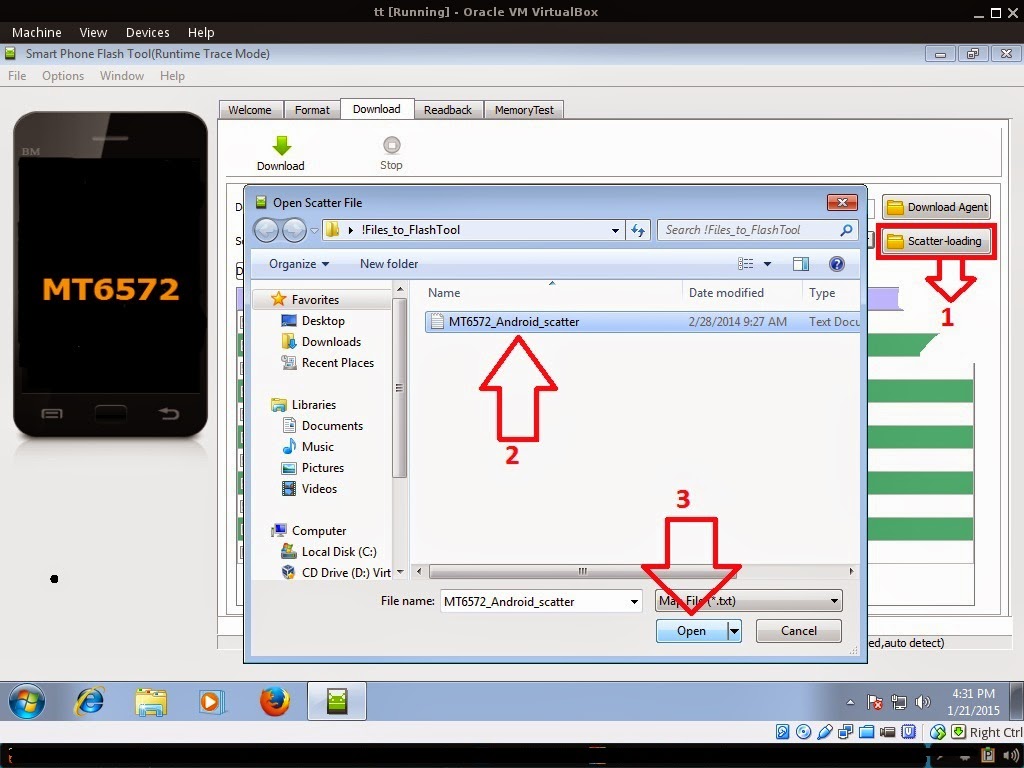
2. In Flashtool, Click on Scatter-Loading, and load your scatter file. (see example below)
Reference Video Using FlashTool version 5.xxx (watch in HD)
3. After you load the file, press Press Download to Flash your Phone.
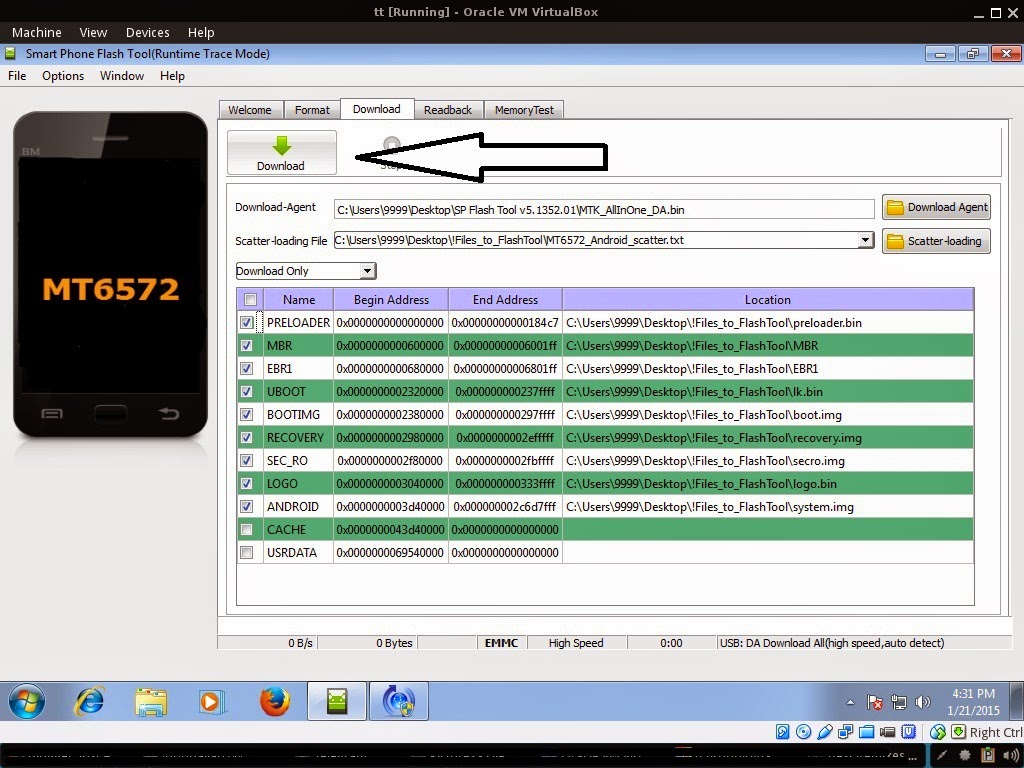
4. After you press Download Follow these steps
Some workarounds:
- Turn off your phone (always powered off is a must)
- Press and HOLD volume UP or Down or you can simply press it simultaneously
- Insert your USB cable without releasing the VOLUME button(s).
- Keep on repeating until Flashtool detected your phone.
"Hard reset your phone after flashing"
Some workarounds:
If you encounter PMT_Changed error here is what you do:
In Latest version of Flashtool
- Load the scatter file
- Choose Format all + Download (Underneath Scatter-loading file)
- Then Click Download and wait until it is done flashing
For Invalid IMEI:Your Phone/Tablet must be rooted first
Restore yong IMEI in MTKDroidTools version 2.5.3. You will have this error when you format your phone in Flashtool as I had experienced. To restore download MTKDroidTools version 2.5.3 After you extract the file. Open the green robot, you must enable the usb debugging in your phone. It is usually located in Settings>Devoloper Mode then look for usb debugging. After enabling it. Connect your phone in your computer then in MTKDroidTool click on ROOT. Wait for it to finish, then Click in IMEI/NVRAM, input 15 number in each box. Then click REPLACE. Then click Reboot or you can manually turn off your phone. Then turn your phone on again. You can see that you have fully restored your IMEI.
Restore yong IMEI in MTKDroidTools version 2.5.3. You will have this error when you format your phone in Flashtool as I had experienced. To restore download MTKDroidTools version 2.5.3 After you extract the file. Open the green robot, you must enable the usb debugging in your phone. It is usually located in Settings>Devoloper Mode then look for usb debugging. After enabling it. Connect your phone in your computer then in MTKDroidTool click on ROOT. Wait for it to finish, then Click in IMEI/NVRAM, input 15 number in each box. Then click REPLACE. Then click Reboot or you can manually turn off your phone. Then turn your phone on again. You can see that you have fully restored your IMEI.
I hope this tutorial help you. Please drop a comment if something is not clear to you.
Go to link download

Thursday, September 29, 2016
Hard Reset your Torque Droidz Trend and remove password pattern lock gmail account
Hard Reset your Torque Droidz Trend and remove password pattern lock gmail account
Hey,
This tutorial is for Torque Droidz Trend. Just check out the procedure below. Im also done dumping the rom of this phone and I will upload it here. ;)
Hard resetting / factory resetting your phone will solve the following issues:
1. If you forgot your pattern lock
2. If you forgot your gmail account
3. If you forgot your password
4. Apps that automatically force closing
5. Stuck in Torque Logo (sometimes does not work if the firmware is totally damage)
NOTE: Performing hard reset will erase your data.
To hard reset:
1. Turn off your phone.
2. Press and Hold VOLUME UP + Power button. Keep pressing and holding until the phone power up, release only the power button when it power up and wait until you see an Android with Exclamation. Press Power Button to activate Android System Recovery
3. Select wipe data / factory reset. To navigate press the VOLUME ROCKER, to confirm your selection PRESS POWER Button
4. Reboot your phone.
Note:
If performing hard reset did not succeed, you need to wipe the cache first in the android system recovery before performing wipe / factory reset.
I hope this tutorial helps you.. If you have any question just drop a
comment.
Go to link download
Saturday, September 24, 2016
Hard Reset your Torque Droidz Slim Duo and remove password pattern lock gmail account
Hard Reset your Torque Droidz Slim Duo and remove password pattern lock gmail account
This tutorial is for Torque Droidz Slim Duo, you can also found the video tutorial below.
Hopefully this tutorial will help you to unlock or fix your phone.

Hard resetting / factory resetting your phone will solve the following issues:
1. If you forgot your pattern lock
2. If you forgot your gmail account
3. If you forgot your password
4. Apps that automatically force closing
5. Stuck in Torque Logo (sometimes does not work if the firmware is totally damage)
NOTE: Performing hard reset will erase your data.
To hard reset:
1. Turn off your tablet
2. Press and Hold Volume UP + Power Button simultaneously. Keep holding the buttons until the tablet power up.
3. An android Robot with red exclamation mark will appear with "NO COMMAND" label. Press POWER button + VOLUME UP to activate Android System Recovery
4. Select wipe data / factory reset, then YES -- delete all user data, press Volume rocker to navigate and press the POWER button to confirm the selection
5. Reboot your tablet.
Video Tutorial
Note:
If performing hard reset did not succeed, you need to wipe the cache first in the android system recovery before performing wipe / factory
reset.
I hope this tutorial helps you.. If you have any question just drop a comment./
Go to link download
Tuesday, September 20, 2016
Torque Droidz Edge firmware stock ROM to unbrick your tablet
Torque Droidz Edge firmware stock ROM to unbrick your tablet
This tutorial is originally from BOARD ID Inet Rev86vz. I just wanted to be more specific with this post. This firmware will in Torque Droidz Edge+.
This firmware is for BOARD ID Inet Rev86vz. This tablet usually have a A13 cpu or chip. Already tried this firmware and it is working well. Back Camera, Front Camera, Sensors, Wifi all is working. If something is not working in your tablet then maybe it is not supported in this firmware. So just try another firmware ;)

Phoenixsuit -->Download Phoenixsuit Here
Firmware --> Board ID Inet 86vz rev03 Part 1
Firmware --> Board ID Inet 86vz rev03 Part 2
Firmware --> Board ID Inet 86vz rev03 Part 3
"You can use file joiner or 7zip to extract the file"
For tutorial on how to flash your tablet, when you download phoenixsuit. The tutorial is in there. Credits to AndroidXDA for the tutorial. I cant write a tutorial as of the moment because I do not have a tablet to flash.
Go to link download
Subscribe to:
Posts (Atom)