Showing posts with label google. Show all posts
Showing posts with label google. Show all posts
Monday, October 17, 2016
Google Cloud Printing Anytime Anywhere!
Google Cloud Printing Anytime Anywhere!
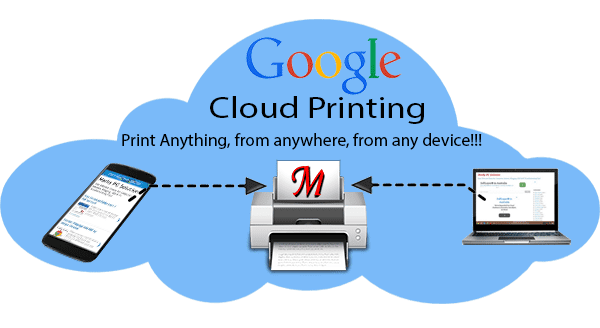
Could you imagine printing from a remote place without network cable? Or could you ever imagine printing from any device like mobile, tablet or laptop which has no printer connected to it? I guess most of you will say a BIG no! But Google Cloud Print technology has made it possible.
Google Cloud Print
Google Cloud Print enables you to print from a mobile, tablet or PC. You can connect your printer to Google Cloud Print within moments. And when youre out of home (whatever the distance), you can print even from your cell phone if the printer is ready!
How Does it Work?
Basically its a cloud technology that works with the help of Google Chrome. You can print right from your chrome browser. To do so, you must need to upgrade chrome to the latest version.
To use the cloud print, you must sign in to Google Chrome using your Google account. Then youve to connect your printer to your Google Cloud Print account. After connecting the printer to cloud, you can print from a remote place. And youre also allowed to share your printer with a friend through his Google ID.
How to Connect the Printer?
I assume that your printer is classic. Now follow the steps below:
- Run Google Chrome, open Chrome menu and choose Settings.
- Sign in to Chrome if you are not already.
- Scroll down and choose Show Advanced Settings . . .
- Now find Google Cloud Print and click on Manage button.
- Now youll get a list of connected printers and available printers.
- Go to the Classic Printers section and hit on Add Printers.
- Finally you will get a confirmation message - Google Cloud Print has been enabled.
How to Print
Printing method is as usual. But you have to print from Google Chrome. You must be signed in to the Chrome. Youve to meet the following conditions too -
- The PC (with cloud printer connected) must be turned on
- Connected to the Internet
- Chrome browser installed
- Must be signed in to Chrome
Now go to the print option, choose your cloud printer and give print command. Then Google will upload your document and send it to your cloud print account and finally the print job will start if your printer is ready there.
For any reason, if you cant print, the print job will be stored on your Cloud Print account.
How to Share?
You can also share your printer with the friends! Follow the steps below:
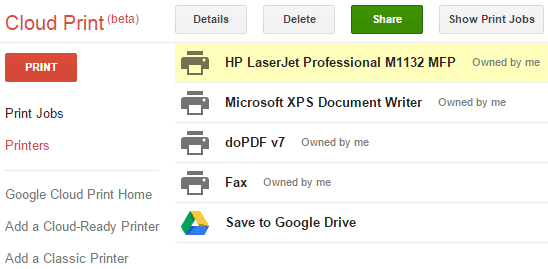
- Go to the list of cloud printers.
- Now choose your desired printer.
- Hit on the Share button.
- Now you can change the privacy.
- You can also invite someone through Name or E-mail.
- Also choose whether he can only print or manage the printer too.
- Finally, hit on the Share button.
Limitations
- Google Cloud Print is still a beta version
- You cant print from any program other than Google Chrome
- There are only few apps that support Google Cloud Print
Hopefully Google Cloud Print will help you a lot. I havent been able to test this technology yet. If youve already tried, please inform me.
To know more, follow Google Cloud Print . . .
Stay with Marks PC Solution to get more interesting IT topics!
Go to link download

Tuesday, October 11, 2016
Add your Business to Google Maps!
Add your Business to Google Maps!
Google Maps is a great communication app developed by Google. Millions of entities are already listed on it. But your own business may be missing here. If youd like to add your business to Google Maps, follow this post . . .
Necessary Tools
- Android Phone with GPS & Data Connection
- Google Account
- Google Maps App
- My Business App (Optional)
Adding your Business to Maps
- Get your Android Phone and turn on its GPS & Data Connection.
- Make sure youre signed into your Google Account and its services.
- Run Google Maps from your Phone.
- I guess youre exactly on your business spot. Make sure the location indicator is in exact position.
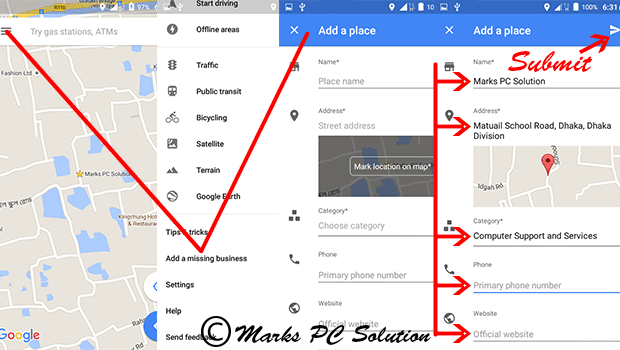
- Now click on the menu button from the upper left corner.
- Scroll down and choose Add a Missing Business.
- Add a Place > Enter your business Name, Address, Category, Phone Number, Web Address, Photos etc.
- If the location indicator doesnt locate your position exactly, then you can use this option (Mark Location on Map) from address.
- Make sure everything is done properly. And finally, hit on the Submit button from the upper right corner.
- Immediately Google will confirm your submission through email.
Now go to the Maps again and find your business there. Write reviews and add photos of your business to make it more attractive to public.
In my next tutorial, you will know about claiming your business . . .
In my next tutorial, you will know about claiming your business . . .
Stay with Marks PC Solution to get more interesting IT topics!
Go to link download
Monday, October 10, 2016
Google Docs Manage your Documents Online
Google Docs Manage your Documents Online

Were just at the beginning of cloud computing. And I think many of you are familiar with the applications of Google Drive. With Google Drive apps, you can perform almost all tasks of Microsoft Office. Today I would like to talk about Google Docs which can be used as a perfect alternative of Microsoft Word.
Features & Advantages
- A 100% free tool for collaboration (Share with anyone, work at the same time)
- No need to purchase software or renew license
- Access your documents from any device (Phone, Tablet, PC) anywhere
- Thousands of options to organize and decorate your documents
- Documents are automatically saved to drive!!
- Compatible with Microsoft Word (Open and edit MS Word Files)
- No unnecessary options
Requirements
Basically its a browser based application. For best performance, you must use the latest version of Google Chrome. And the connection speed should be more than 256 kbps to load the page properly.
How to Use Google Docs?
All you need is just a Google ID. If youve a Gmail account, you can directly access Docs from Google Drive. Simply sign in to your Google ID, then follow the URL below:
https://drive.google.com/drive
Hit on the red New button and choose Google Docs to create a new document.

After creating the new document, you will get an interface which is almost similar to Microsoft Word 2003. And the pull down menu commands are also similar to Word 2003 except few changes. You can use the same keyboard shortcuts that are used in MS Word documents.
- Use File menu to share, open, create, rename, download or print a document. Page setup option is also available here.
- Use Edit menu for undo, redo, cut, copy, paste, find & replace.
- Use View menu to adjust your visual settings.
- Use Insert menu to add image, equation, symbols, page number, header, footer, drawing etc.
- Use Format menu to give your document a final touch i.e. bold, italic, underline, line spacing etc.
- Tools menu helps you to check spelling, word count, research and define.
- Table menu provides you the complete solution for creating and editing the table.
Remember, these 7 menus are very similar to Word XP or 2003. But unnecessary options are not included here. And some new options for collaboration are added which you cant find in Word.
Look at the Google Docs interface below:

For your convenience and quick access, you can use the toolbar just below the menu. Print, font, font size, text color, style, linking, bold, italic, underline these options are always ready to use.
If you need to save something on your hard disk, go to the File menu > choose Download as > Microsoft Word or any other format you need > Save.
By default, the new document is untitled. If you need to give it a name, use the Rename option from the file menu.
Work Offline!
What did you think? You must be always online to work in Google Docs? Not necessarily! You can also work offline (even without signal) if you need to.
For this, you must be signed in to chrome. And then visit either Docs, Slides or Sheets. Offline editing will be turned on. Know more . . .
Hopefully, youve enjoyed the post. If you have any query, you know what to do . . .
Stay with Marks PC Solution to get more interesting IT topics!
Go to link download
Download Fox12 Oregon Google TV 1 6 APK for Android
Download Fox12 Oregon Google TV 1 6 APK for Android

ID: com.aimitv.kptvnewsgtv
Version: 1.6
File Size: 2.9Mb
Fox12 Oregon Google TV Screenshots
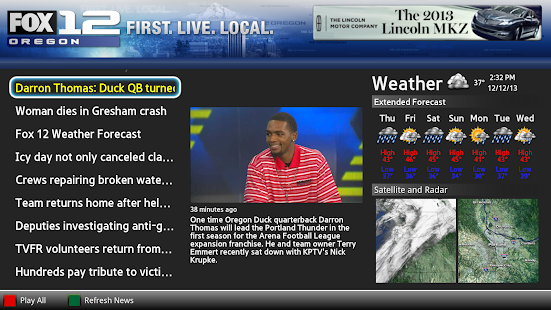
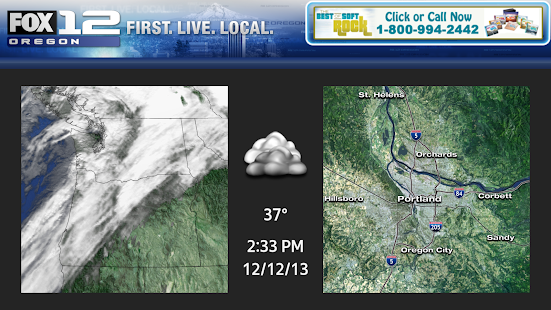
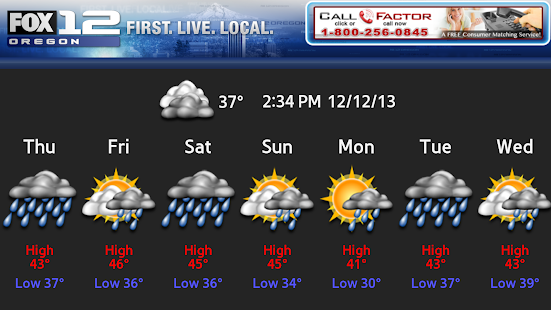
Fox12 Oregon Google TV Description
WATCH your latest Oregon area News, Weather, Traffic and more on demand on your Google TV device with the FOX12 Oregon App!keywords: KPTV
Download Fox12 Oregon Google TV 1.6 APK
Go to link download
Saturday, October 8, 2016
6 Ways to Increase Google Adsense Ad RPM and CPC Quickly!
6 Ways to Increase Google Adsense Ad RPM and CPC Quickly!
Well, you might be very worried about sudden reduction in Adsense earning basically in Ad RPM which is said to be going lower and lower by previous month and still continues. Then this article could be extreme remedy for your headache if youre the person who things Adsense earning is getting dropped mainly because of very lower Ad RPM. Look, Ad RPM is not the only reason of Adsene earning reduction but there are four more different bid types in AdWords Ad Inventory allowing advertisers to select their desired bid types also with suggested bid value.
Very largest share of Adsense publishers earnings come from Revenue per thousands impressions (RPM) bid type and this works with image and rich media ads specially. So when Ad RPM goes down your total earnings will be affected though ads can generate money through other three methods [CPC, Active View CPM and CPE]

Anyway today I will discuss some basics of Adsense RPM and other co-factors specially how to increase Adsense RPM to increase Adsense earnings overnight. Lets have some fresh mode before reading...
Factors Related Impressions, Ad RPM and eCPM
Impressions are a normal behavior across website or webpages which relate to advertisements to make earning be displaying ads on requested pages. Ad RPM is auto calculated and reported to publisher account dashboard, eCPM is effective cost per thousand impressions which also relates to Adsense earning. Lets learn them deeply with explanation before diving deep the main article.What is Impression?
In general Impression can be expressed to be an specific item is viewed by a user on a website. This can be body content, a video, images, ad unit or an advertisement, specially this means the focus of a visitor after landing on a webpage. At the same time visitors have freedom to scroll up/down the page, take any action or leave page immediately without any engagement. Impressions are calculated by Google Analytics tracking code and Adsense ad tracking code, and you can see reports on both GA and Adsense account dashboard.What is Ad Impression?
Ad Impression is a bit different term than normal Impression occurs across a webpage. Ad Impression is auto generated and reported whenever an individual ad is requested and displayed on a webpage. Different ad formats generate different ad impression suppose, each time wide skyscraper ad unit displays on your site you see two ad impressions.What is Ad RPM? - Calculate eCPM
Ad RPM is simply meaning the ratio between Estimated earnings and total ad impression are multiplied by 1000. In calculation we see thatAd RPM = (Estimated earnings / Ad impressions) * 1000
To increase and decrease Adsense earnings Ad RPM plays great role indeed, since the advertising bit types are different and many advertisers prefer cost-per-thousand impressions (CPM) rather than CPC or CPE types so you can see a gradual rise up or drop in Adsense earnings which are mainly affected by Ad RPM
For example,
You have chosen two custom ad units "Large Rectangle" and "Leaderboard" respectively to place them on different spaces on your site to only test the eCPM rate. After 24 hours roundup you have checked your Adsense ad channels performances for these two ad units. You have seen the "Large Rectangle" channel receives 500 ad impressions and $3.26 in total earnings whereas the "Leaderboard" gets 200 ad impressions and $2.99 in total earnings by the same period.
To make them figure out you have calculated their Ad RPM rate by the formula above and seen the eCPM rate for "Large Rectangle" is $6.52 and "Leaderboard" is $14.95
So if your ads get 1000 impressions then "Large Rectangle" can generate $6.52 is less than "Leaderboard" who gives you $14.99 by the same impression rate. So this is more effective to place "Leaderboard" on other ad spaces instead the "Large Rectangle" on your site.
How to Improve Adsense RPM?
Use following strategies to increase Adsense Ad RPM effectively and increase your earning overnight.Reduce Bounce Rate
Bounce rate is related to search engine ranking factor which is calculated by measuring the % of visitors leave your site after visiting pages [may be a single page or multiple pages]. If more than half of your visitors leave your site by visiting only one single page then your bounce rate will drastically go up and you will be notified it on Audience overview under Google analytics account dashboard.Increased bounce rate hampers Adsense RPM rapidly!
Suppose you have placed maximum three "Ad units" on every single page of your site and each time a visitor visit your page you get 3 impressions/visit. If that visitor visits three pages at the same then you get 9 impressions/visit.
But if that visitor leaves your site from that single page then you lose 6 impressions from one visit. Thus more than half of your visitors leave by single page visit then you get lower and lower impressions. If it continues day by day you get fewer and fewer earnings day by day.
So you have to understand bounce rate of your site and apply strategies to decrease bounce rate. Here are quite few articles can help you to reduce website bounce rate.
Increase Ad CTR
CTR or Click through rate is calculated by clicks for impressions, views, queries in 100%. CTR is normally calculated and reported to Google webmaster tools also Google analytics when visitors are clicking on links from search engines results pages, social networking sites, or referring pages before entering a webpage.Ad CTR is a bit different than "CTR" which reports clicks for Ad impressions in 100%. To increase Adsense earning this is more important to increase Ad CTR. Read the following article:
How to Improve Google Adsense CPC and CTR up to 75% With These 10 Methods?
Choose Top Performing Ad Sizes
Over a decade Adsense team report many factors about the secrets of Adsense earning where "Top performing Ad Sizes" are one of the remarkable mentions. Adsense annalists have driven test on many Advertisement sizes and found that certain ads out perform and grow higher revenue than other similar ad units. Based on website content, quality and traffic growth there are suggested ad units that perform extremely well and generate double even triple earnings than a publishers expectation.These ad units definitely generate higher CTR which further lead to generate more CPC rate and more earnings.
This article explains what are the "Top Performing Ad Sizes Currently in Google Adsense?"
Switch to both Text & Image Ad
This is recommended by Adsense to create ad unit for both text and image ad in order to lead more competition between advertisers and grow more earnings. Look why we will choose text and image ad rather choosing only text or image ad.Because there are four bid types in AdWords advertising campaigns [cost-per-click (CPC), cost-per-thousand impressions (CPM), Active View cost-per-thousand impressions (Active View CPM), cost-per-engagement (CPE)] and eight Ad types [Text, Image, Rich media, Flash, Video, Animated image, Audio, Link units]
Advertisers choose their target ad spaces based on products and services and willing to pay on four big types. Some will pay you on CPC method and some on CPM, some for Active View CPM and some for CPE. As you dont know which advertisers will pay you for CPC, or CPM etc. bid types so its brilliant decision to switch both text and image ads to run ad competition between all the available advertisers and grow maximum revenue from your website traffic.
Ad Placement on Your Website
This is another strategy to increase your Adsense earning by right placing ads on your website.We know that ads placed above fold can generate more CTR than ads on footer, below content, or lower sections. But there are other valid reasons to give right placements to your ads which are also called the best practices of Ad placement. Look below
Adsense on Post Pages
Here are two good examples of Adsense ad placement on post pages
Place your ads on right or left side close to the introductory part of your content. [Good practice]
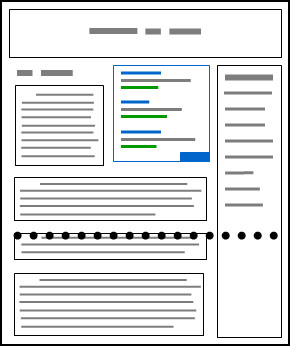
Place ads just after 4/5 sentences of introduction of your content body [Good practice]

The following is bad example of adsense ad placement practices
Place ads right below the fold. [Bad practice]

Since browsers and screen sizes vary, heres a handy tool that allows you to enter any URL, and check whether youve implemented your ads above the fold. To use it, visit as-abovethefold.appspot.com.
Blend Ad Colors with Website Design
There are three different ad styles that suite a website content.
Blend: To make the background and border color similar to background of article page and match Ad link color similar to anchor text color.

Complement: Use a default ad style which doesnt match article background or text color and provide lesser user experience in visual effect.

Contrast: Choose ad color that are different of website background color. This type of ad style is generally suited for dark background color where text color is white.
Conclusion
Adsense is a powerful ad publisher network in providing more money, highly useful ads from big brands of the world, and good user experience than any other online advertising network right ever now. Over millions of bloggers, and website owners have their career on Adsense revenue so any certain drop in Adsense earning can be an extremely headache to these publishers.Anyway by reading this article I hope you will get crystal clear conception about Adsense revenue per thousands impression "RPM" and how to improve Ad RPM to increase Adsense earnings. If you have any question regarding this article dont forget to ask me through commenting.
Wish you all happy blogging days :)
Go to link download
SEO and Google adsense optimized blogger templates free
SEO and Google adsense optimized blogger templates free
Blogger Template No. 1 – Metro BTK V2
[ Demo - Download ]
Blogger Template No. 2 – Johny Pakdhe
[ Demo - Download ]
Blogger Template No. 3 – MaxMag
[ Demo - Download ]
Blogger Template No. 4 – Bresponsive
[ Demo - Download ]
Blogger Template No. 5 – Media Online
[ Demo - Download ]
Blogger Template No. 6 – Johny Darkfire
[ Demo - Download ]
Blogger Template No. 7 – Metro Simple
[ Demo - Download ]
Blogger Template No. 8 – Devils Workshop
[ Demo - Download ]
Go to link download
Tuesday, October 4, 2016
Google Earth Pro Goes Free!!!
Google Earth Pro Goes Free!!!

Can you imagine? An application which was once worth of almost US$ 400 is now absolutely free! Recently Google has made the Google Earth Pro license open for all. Earlier the users could use the Google Earth without license. But they had to pay to upgrade to the pro version. Now, you can apply for a free license for the pro version!
Google Earth Pro
Google Earth is not a recent invention at all. Most of the people of the web are familiar with this amazing tool which was created more than a decade ago. Google Earth is a free application which allows you to -
- Fly around the cities or the entire world
- Explore the geographical areas
- Trace out the business locations
- Zoom out to street level
Only a few days ago, the Earth Pro users had to pay $399 dollar per year as subscription charge. But Google has made the license free for all from January 20, 2015. Not many people used to purchase the key for pro version. And the features of earth pro are not necessary for all. But certainly the pro version will be more helpful for the users.
With Google Earth Pro, you can -
- Locate your target more accurately
- Measure the distances and areas
- Get high quality images to be used in reports or presentations
- Create movie and map
- Count traffic
- And more . . .
Get the Earth Pro Now . . .
- Visit Google Earth Pro Download Page.
- Choose latest version 7.1 and hit on the button Agree and Download.
- Its about 25 MB in size. After completing the download, install it normally.

How to Get the Free License for Pro Version?
To get the free license, follow the steps below:
- Go to the Sign up page.
- Fill out the form properly (All fields are required).
- Hit on the Sign me up button.
- If everything is okay, you will receive an email with license key immediately.*
* Wait 24 hours in case of delay.
After getting the license, launch Google Earth Pro. Hit on the login button. Enter the following information -
- Username: Your Email Address through which you registered
- License Key: The key that youve received i.e. J2PMQ1DBS12NNCF
You Should Know . . .
- Google Earth is somewhat heavier. Your PC should be of good configuration to run it smoothly. (Dual Core processor recommended)
- Your net connection must be strong enough to support quick loading. (At least 512 kpbs or 1 mbps recommended)
- Existing license holders dont need to do anything. Their licenses have already been extended.
Stay with Marks PC Solution to get more interesting IT topics!
Go to link download
Thursday, September 29, 2016
Google Talk is Gonna be Shut Down!!
Google Talk is Gonna be Shut Down!!

Few days ago, I just signed in to Google Talk and got the following message -
Google Talk app for Windows is no longer supported. It is being replaced by the new Hangouts Chrome app. Install the Hangouts app from http://goo.gl/yglfk6.
Its my post number 400! Im really sorry to publish a bad news in this post. But I promise, in post number 500, I will try to write something exceptional. Ive already got the idea for that post!
I was really surprised and shocked after getting this message. To chat with my friends and blog visitors, most of the time Google Talk is my first choice. I dont like chatting in Gmail because its heavy and slower.
I was really surprised and shocked after getting this message. To chat with my friends and blog visitors, most of the time Google Talk is my first choice. I dont like chatting in Gmail because its heavy and slower.
Google is trying to promote its Hangout app for Android, Mac and Windows operating system. They are also trying to move the Internet world to Google Chrome. Thats why Windows users cant use Hangout without Chrome. Hangout is installed as a Chrome extension which is really bothering.
But I think Google Talk was a really smart tool to communicate with people. Google could develop the app instead of shutting it down. And some of the Google Talk features are not available in Hangout. In slower connection, you may need to fight to connect to the Hangout. Its really frustrating.
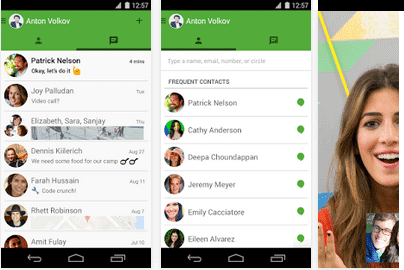
Last year Google announced that - Google Talk app for Windows is being retired. And from this month, Google Talk users are getting the following message from gmail.com:

Now Google is offering the Hangout app. Its a cross-platform application. You can get this tool from:
- Google Play for Android Devices
- App Store for Mac OS
- Chrome Web Store for Windows

Hangout looks smart but I think some changes are necessary. Think about file sharing. Google Talk users can share files but this feature is not available on Hangout. Of course you can share images through Hangout. And it also allows you to draw something in chat window.
You can still use Google Talk. But time is very short - maybe two months at best. And then Google Talk will be turned off forever! :(
Stay with Marks PC Solution to get more interesting IT topics!
Go to link download
Wednesday, September 28, 2016
Google Maps Your Live Travel Guide!!
Google Maps Your Live Travel Guide!!
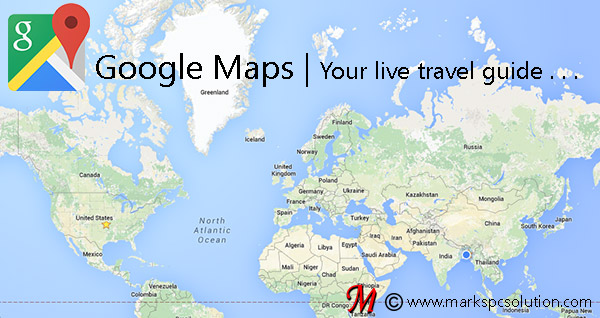
What exactly should I say about Google Maps? Well, Im just impressed about it! All of you are familiar with the name - Google Maps. But how many of you make proper use of it? Or, have you ever gave it a try? Lets explore Google maps today . . .
Background Story
To be honest, Google Maps is a great application as well as a great service from Google. And you dont need to pay a single dollar to avail this service. When I had been transferred from Dhaka to Sylhet, I was little bit tensed about the new area, places, roads and directions.
Though Im in the new location for the first time in my life, Google Maps makes it easy for me to move on.
About Google Maps
With Google Maps, the world is in your hand. Wherever you go, Google Maps can show your the right directions. Even if you are in a rural area, for which official map is not available, you can see even the narrow paths through Google Maps.
To use the Maps, you should have a strong network connection. Otherwise you cant use it properly.
Check what you can do with Google Maps . . .


How to Use?
Google Maps is really easy to use. If youre using the maps on a Desktop PC, then simply visit Google Maps Website. Or if youre using it on your phone, then you must have the app installed.
Run the Google Maps from your device. Keep your location turned on. Turn on your data connection. Now youre ready to go!
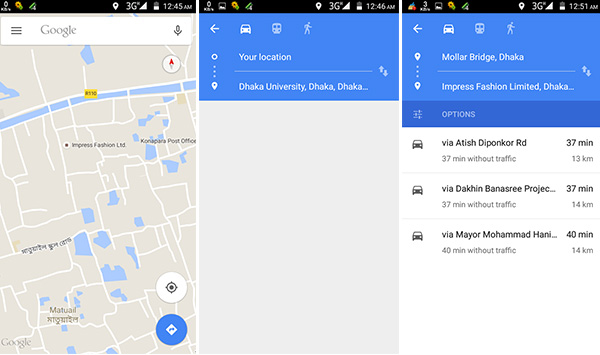
To use the Maps, you should have a strong network connection. Otherwise you cant use it properly.
Check what you can do with Google Maps . . .
- Locate your current position within seconds
- Locate your destination in the map
- Find the available routes to reach your destination
- Calculate the distances between places
- Estimated time to reach your destination
- Find the location your desired Gas Station, Mosque, Educational Institutions, Park or anything . . .
Get the Maps on your Phone . . .
Smartphone or Tablet is ideal device for using Google Maps. Of course you can do everything on a desktop or laptop. But when youre travelling, you should use it on your phone.
How to Use?
Google Maps is really easy to use. If youre using the maps on a Desktop PC, then simply visit Google Maps Website. Or if youre using it on your phone, then you must have the app installed.
Run the Google Maps from your device. Keep your location turned on. Turn on your data connection. Now youre ready to go!
- As soon as you run the app, it will find your current location marked by a blue pointer.
- You can zoom in/ zoom out to adjust the view.
- To get a direction, hit on the direction button > choose your destination and current position.
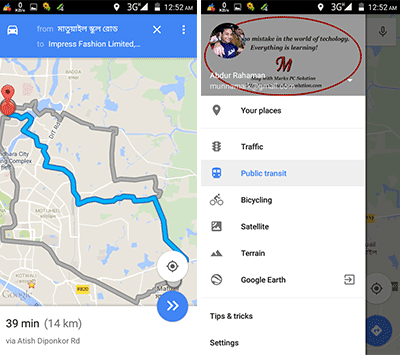
- You can also choose the nature of your journey - Bus, Train or Walking! Then Google Maps will calculate the distance, available routes and probable time to reach the destination!!
- When youre in a bus, car or train, open your Google Maps, and you will see your live position there. The pointer will move forward as your vehicle moves!
- If youd like to get a satellite view, then switch map to Google Earth.
Hope all of you will enjoy this amazing application. If you face any problem with this app, or if you have any query, please share with me . . .
Stay with Marks PC Solution to get more interesting IT topics!
Go to link download
Tuesday, September 27, 2016
Get Google Adsense Approval within 3 days – Top 12 Working Strategies
Get Google Adsense Approval within 3 days – Top 12 Working Strategies
Get Google AdSense Approval Within 3 Days:
So before getting started, make sure you follow these guidelines without fail, else your application will be rejected without any further pending approval. Remember that everything which I mentioned below counts. Don’t compromise on number of posts, own domain, good design and other metrics, else the chances of rejection is higher at your end. So here we go, the 15 most important guidelines to follow before applying to Google AdSense.
Minimum Posts/Articles/Pages:
If you are using WordPress, make sure your website/blog has at least 40 quality articles which are not copied from anywhere else. Your content on the articles should be extremely rich and make sure you use relevant images where ever required. Try to include two lengthy articles of 2000 words each, which should be absolutely stunning while anyone reads them on your website. If you are using HTML website or any other non CMS version of blog, make sure you have atleast 50 pages on your website in form or articles or landing pages.If you miss providing this any of the above information on your website, Google might reject your application saying Insufficient Content or Unacceptable Site Content. So make sure they see enough content on your website before applying the program. The more the content, the better chances of approval.
Prohibited Website Niches:
Statistics show that your account will go through a faster approval process if you have more quality articles on Health, Internet Marketing, Business, Law, Technology, Entrepreneurship, Travel, Lifestyle and Social Media. Google will take your application as a serious offense if your website contain any of the prohibited content mentioned in this link here.Some studies have also proved that Google AdSense might reject your approval if your website is on event blogging and micro niche blogging. In this particular blogging, you limit your blog content to only one particular subject and create a spam domain around it to rank higher. Eg: www.mayweathervspacquiaomatchonline.com (Mayweather vs Pacquiao Match Online). In some cases, if you have observed Google Ads in these of websites, probably they have applied the account through an another account and placed the ads in this event niche blogging to earn quick money.
No Third Party Ads or Programs:
Before applying to AdSense, make sure you don’t allow or place any other third party banner ad code on your website. Google (employees) will strictly look into your website manually and they hate seeing some third party ads installed in your website. Stay away from Infolinks, Chitika, Yahoo Ads or any other third party network to get the first impression clean on your website. Make sure you put only the fresh content and some regular widgets on the website.Also, stay away from affiliate links such as hosting programs, Amazon affiliates, Clickbank or anyother until your account is approved.
Website Design and User Experience:
Google always want their users to get the best experience while browsing through any website they refer. Maintaining a clean design with good navigation and user experience will boost your chances of getting AdSense approved in the first attempt itself. This is one of the major guidelines where lot of people miss the basics. Google believes that if you maintain professional color scheme on your website, the user might be willing to come back and click on the relevant ads which are displayed under your content.So make sure you maintain a neat and clean design before applying to AdSense. I would recommend you to buy one professional template anywhere and get it installed on your website without effecting the loading speed or easy navigation.
Google Analytics Code:
Adding Google Analytics code on your website is a trusted factor for the approval. Adding Analytics onto your website show that you are actively tracking your visitors and is much serious about the statistics of your users who visit your website. If you haven’t created one, click here to register the program. Once registered, get your tracking code by creating new account under the accounts tab and enter your website name, URL and other required details. Place the code on each page of your website to track the data instantly.Google/Bing Webmasters Verification Page:
Just like Google Analytics, you need to even verify with Google Webmaster program, which has the complete access to your website in search perspective. With Google Webmaster Tools, you can track your website critical errors and fix them on a daily basis. Click here to register and click on “Add a Site” to enter your website URL. Verify your website ownership through any of the recommended method and complete the process to keep your account functioning actively.Also, adding the Bing Webmaster Tools to your website will add more credibility to your domain that you are serious about the website search visibility. Though this guideline is pretty easy to perform, many people will get comfortable without knowing the importance of installing these tools.
Adding these two verifications on your website code or server will show good results on search visibility as well.
XML Sitemap Page:
Creating a sitemap doesn’t take too much of your time. If you are using WordPress, I recommend Google XML Sitemaps By Arne Brachhold. And if you are using any other platform, I recommend you to checkout XML-Sitemaps website for more info. Installing a sitemap on your website can help search engine bots to index your website faster, which is again a trust factor to bots about the website trustworthiness.Robots.txt
Creating Robots.txt file on your website will get rid of indexing unwanted junk onto Google. I have written a detailed post few days back on how to write perfect robots.txt for your website. Else you can also check SEOSiren.com own robots.txt file and simply copy it to your WordPress website. I have restricted all the unwanted data indexation to search engines, which adds a lot of value to your SEO efforts of ranking the pages higher on Google. Plus, robots.txt file is another great feature to add it your website as a trust factor.Alexa Rank:
Google AdSense considering the Alexa rank has always been a controversy, as many people disagree that Google doesn’t care about your global rankings. Trust me, I strongly believe that this is one of the most important checklist any manual operator checks before even opening your website statistics. How can anyone quickly judge about a website performance? The answer is simple, and its Alexa ranking. So make sure you install the Alexa toolbar and read my eBook on how to boost Alexa ranking within 30days.Note: Before applying to AdSense, make sure your website global Alexa ranking is less than 400K for faster approval process. Usually the website above this rank is considered to be new and underestimated that no much data is seen on them.
Important Pages:
Google wants to know your identity before you signup to their AdSense program. So make sure your create the following pages on your website as soon as possible.- Privacy Policy
- Disclaimer Policy
- Terms of Usage
- Contact Us
- About Us (Write your name and address through which you applied the AdSense account)
Custom Domain and Email ID:
A lot of people get create websites through blogspot and free WordPress platforms to apply AdSense. Note that AdSense team will take a custom domain more seriously rather than the free domain name. Investing 2$ on a domain name is not a big deal when you have health chances of getting approval with other factors like mentioned above. So don’t give yourself a second chance to apply the AdSense program and get your own domain as early as possible.Once you have your own domain, create an email ID with your name (name@website.com) to apply the AdSense program. Eg: satish@seosiren.com will get more attention compared to satishseosiren@gmail.com. Note that your free website programs give you the privilege or adding your custom domains without paying any additional fee.
Decent Traffic:
Though a lot of portals, forums mention that Google AdSense doesn’t require any certain amount of pageviews to approve your account, I still feel and experienced the treatment if you have a decent traffic. Let your blog age a few weeks (atleast 2 months) before you rush to apply the AdSense program. I would always recommend you to stay until your website get a minimum of 50+ visitors per day. If your website is not getting enough traffic, the chances of rejection is much higher when compared to other guidelines.Once your website is ready with all these above guidelines, click here to apply to Adsense, and make sure you have gone through the Google AdSense TOC for more information on the program.
Leave your comments to check if your doing good with the process. And if your AdSense was rejected despite of following all these above mentioned guidelines, shoot me a mail to satish@seosiren.com and I will help you out with a free AdSense consultation. Stay tuned to SEOSiren for more such interesting topics!
Also, I have made a step by step video guide on how to apply Adsense if you are looking for more information. Check out the below video and let us know if you still have trouble in getting your account approved.
Go to link download
Subscribe to:
Posts (Atom)