Showing posts with label icon. Show all posts
Showing posts with label icon. Show all posts
Wednesday, October 5, 2016
How to Change the Folder Icon
How to Change the Folder Icon

By default, Windows folders look like a yellow folder. And if you use any custom theme, it may change. Many of you might know how to customize the Windows Folder Icon. Its very easy to change. Previously I discussed about how to change the pen drive/ hard drives icon. Today Im gonna discuss about changing the folder icon.
Its been few months when I published any Windows trick. Sorry for the long break!
To change the folder icon is much easier than changing the drive icon. If you wanna change the drive icon, you have to use an autorun file. But you dont need any notepad file to change the folder icon. All you need is just an icon format (must be .ico) image.
First collect an icon format image. You can convert an image into icon in any of the following ways:
- Create Icon using IcoFx (Only 1.62 MB)
- Convert Image into Icon Online
I prefer using IcoFx. Download it and convert your image into icon within seconds. After getting the icon, you can go for the next step.
Change Folder Icon
- Copy the icon that you wanna show in the folder.
- Go to My Computer (Start + E) or any location where your desired folder is located.
- Paste the icon within that folder.
- Press Backspace to get out of this folder. Now click right mouse button over the folder and go to the Customize tab > Change Icon as shown in the image below.
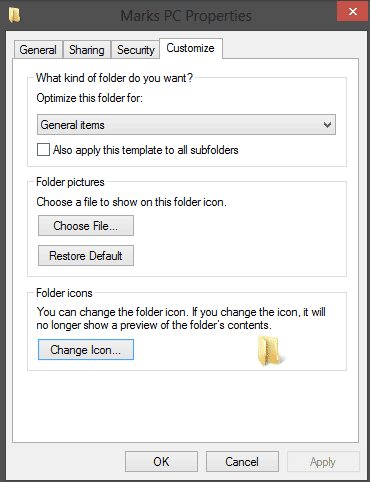
After hitting the Change icon button, you will get a list of Windows Icons. You can use any of them. But here Im gonna use the custom icon. So you have to click on the browse button.

After hitting the browse button, you have to locate the folder again. Go to the folder and choose your custom icon that youve copied in the first step. Now hit on Open > Apply > OK. And youre done!
Restart your PC if you dont see any change.
Note: Its not necessary that the icon needs to be copied in your desired folder. Windows can show the folder icon from any other folder. But when you take that folder through a CD or Pen Drive, you may not get that icon with the folder. Thats why Im recommending to keep the custom icon within this folder.
For more tips on Windows, visit this page . . .
Stay with Marks PC Solution to get more interesting IT topics!
Go to link download

Thursday, September 8, 2016
Show My Computer Icon on Windows 10 Desktop
Show My Computer Icon on Windows 10 Desktop

You may find it very difficult to show Computer/ My Computer/ This PC icon on Windows 10 desktop. To be honest, I also get puzzled by this problem! Now Ive been able to fix this problem. In fact, Windows 10 has come with many absurd settings. Maintaining your system has been a tough job here.
Same thing happened to Windows 8 also. But showing my computer icon on Windows 8 desktop was much easier. I mean finding the settings for showing desktop items were easier. Now I will show the way to show This PC icon on Windows 10 desktop.
This tips applies to - Windows 10 Final Version only!
Display My Computer Icon on Windows 10 Desktop
Follow the simple steps below . . .
Follow the simple steps below . . .

- Go to Desktop (Press Start+D)
- Right click on a open area > Choose Personalize
- From the Personalization window, hit on Themes button
- Related Settings > Desktop icon settings
- Now you will get Desktop Icon Settings window
- Choose necessary Desktop Icons > Apply > OK. Thats it!


Microsoft is Getting Crazy!
Im fed up with Microsoft! Theyve just made some wrong changes for last few versions of Windows. I can point them out -
Im fed up with Microsoft! Theyve just made some wrong changes for last few versions of Windows. I can point them out -
- Removing .Net Framework 3.5
- Removing My Computer Icon from Desktop
- Disabling Automatic Update Control settings
- Removing date calculation option from Calculator
- Removing Windows Update from Control Panel
- Poor Start Menu (Windows 8 Start Menu was better)
- Overall difficult settings - absolutely absurd!
Theyve also decided not to release any more new version of Windows OS! So, were not getting any better version soon . . .
Stay with Marks PC Solution to get more interesting IT topics!
Go to link download
Friday, August 19, 2016
Pink Neon Glow Theme Icon pack apk free download
Pink Neon Glow Theme Icon pack apk free download

Pink Neon Glow Theme Icon pack
Personalization
[Download Link >>]
version:1.0.3
rating: 4.9
rating count: 182
updated: 2015-02-28
size: 14 MB
installs: 1000
cost: UAH20.20
Go to link download
Subscribe to:
Posts (Atom)