Showing posts with label ribbon. Show all posts
Showing posts with label ribbon. Show all posts
Wednesday, August 24, 2016
HORIZONTAL STYLISH RIBBON HOVER MENU
HORIZONTAL STYLISH RIBBON HOVER MENU

Horizontal Menu is one of very important part of any blog and if menu is giving a good and better sound then whole blog looks very good and also feel like a professional blog for everyone. This Ribbon menu is totally made by CSS3 without any javascript and without any image and this is a pure CSS3 menu then there will not be any problem to installing it in blogger. Its hover effect is also very beautiful with mouse. Today watch this new menu bar tutorial and give us basic help shuld how ne stylish and animate version menu bar here moddern ribbon different style here CSS3 HTML.
Live Demo
ADD CSS3 RIBBON STYLE MENU
- Login to Blogger > Dashborad
- Click on Drop Down Menu and select Layout
- Add a HTML/JavaScript Gadget
- Paste below code in it.
<style>
.wg-ribmenu span {
background:#A81B6A;
display:inline-block;
font-family:verdana;
line-height:3em;
padding:0 1em;
margin-top:0.5em;
position:relative;
-webkit-transition: background-color 0.2s, margin-top 0.2s; /* Saf3.2+, Chrome */
-moz-transition: background-color 0.2s, margin-top 0.2s; /* FF4+ */
-ms-transition: background-color 0.2s, margin-top 0.2s; /* IE10 */
-o-transition: background-color 0.2s, margin-top 0.2s; /* Opera 10.5+ */
transition: background-color 0.2s, margin-top 0.2s;
}
.wg-ribmenu a:hover span {
background:#FFD204;
margin-top:0;
}
.wg-ribmenu span:before {
content: "";
position:absolute;
top:3em;
left:0;
border-right:0.5em solid #9B8651;
border-bottom:0.5em solid #fff;
}
.wg-ribmenu span:after {
content: "";
position:absolute;
top:3em;
right:0;
border-left:0.5em solid #9B8651;
border-bottom:0.5em solid #fff;
}
.wg-ribmenu a:link, .wg-ribmenu a:visited {
color:#000;
text-decoration:none;
float:left;
height:3.5em;
overflow:hidden;
}
.wg-ribmenu:after, .wg-ribmenu:before {
margin-top:0.5em;
content: "";
float:left;
border: 1.5em solid #A81B6A;
}
.wg-ribmenu:after {
border-right-color:transparent;
}
.wg-ribmenu:before {
border-left-color:transparent;
}
</style>
<div class=wg-ribmenu>
<a href=#><span>Home</span></a>
<a href=#><span>Widget</span></a>
<a href=#><span>Hacks</span></a>
<a href=#><span>jQuery</span></a>
<a href=#><span>Sitemap</span></a>
<a href=#><span>News</span></a>
<a href=http://www.widgetgenerators.blogspot.com/><span>FAQs</span></a>
</div>
- Save your widget and you are done.
MAKE CHANGES....!
- Replace it # with your link.
- Replace it Orange color with your own tab name.
Go to link download

Thursday, August 18, 2016
Disable Auto Hide Ribbon in Microsoft Office
Disable Auto Hide Ribbon in Microsoft Office
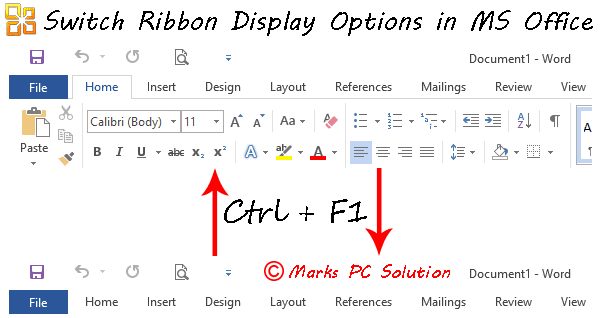
Were familiar with ribbon interface from Microsoft Office 2007. And now the latest version is Office 2016. In ribbon interface, everything you need is just a click away. Here, you dont need to search for an option through drop down menu.
The main problem of the ribbon is, it reduces your typing/ working space. Thats why your system may hide the ribbon automatically. But if youre not tensed with the working space, then you should keep the ribbon turned on. Definitely it will make your tasks more convenient.
Show/ Hide the Ribbon in Office 2013/ 2016
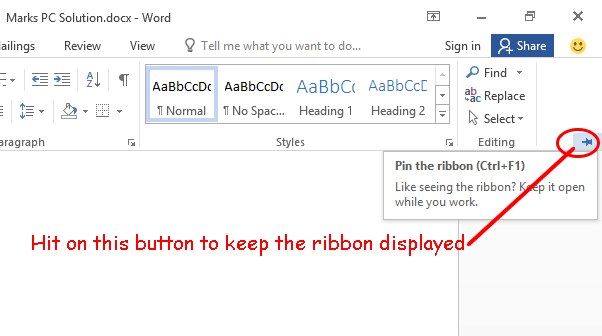
Hitting on this button will prevent the system from hiding the commands automatically. Or you can use Ctrl+F1 to switch between modes.
Show/ Hide the Ribbon in Word 2007/ 2010
As Im using Word 2016, providing screenshots for earlier versions is bit tough. And ribbon option is little bit different in Word 2010 and 2007.
But I hope, Ctrl+F1 works in these versions too! And you can also follow the image below:
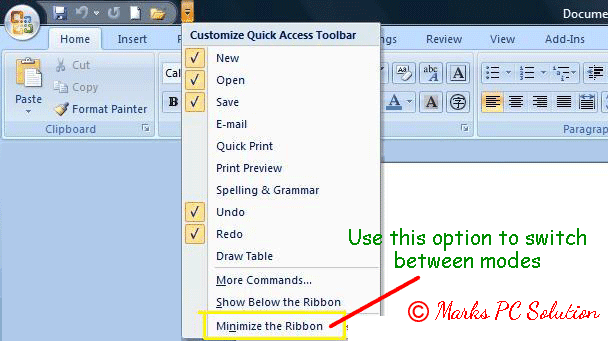
Clicking on the down arrow (Cutomize Quick Access Toolbar) will allow you access these options.
As the ribbon is now displayed, you can see Minimize the Ribbon option. When the ribbon commands are hidden, you will see the opposite option.
And in Office 2010, a small up arrow will be shown just above the ribbon commands. Clicking on that button will hide your ribbon commands.
And always remember the keyboard shortcut for this option -
Hope this trick will help a lot if youre in trouble with the ribbon display options. If you still need to be clarified, please knock me . . .
Show/ Hide the Ribbon in Office 2013/ 2016
- Simply press Ctrl + F1 to switch between ribbon views. When the ribbon is turned on, press Ctrl+F1 to hide this. Using the same keyboard shortcut will turn it on again!
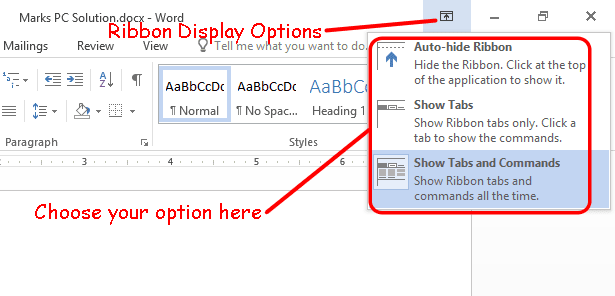
- Or if youre not good at memorizing the keyboard shortcuts, please follow the image below -
Look at the options -
- Auto-hide Ribbon: It will keep the ribbon and tabs hidden automatically. To view the commands, you need to click at the top of the screen.
- Show Tabs: It will only display the tabs. When you click on any of them, you will able to see the commands.
- Show Tabs & Commands: This is what I prefer most of the cases. Choosing this option will show the ribbon tabs and commands.
When your system is automatically set to Show Tabs option, you will be able to view the commands when you choose a tab. In that case, if you would like to pin the ribbon, simply look at the image below:
Hitting on this button will prevent the system from hiding the commands automatically. Or you can use Ctrl+F1 to switch between modes.
Show/ Hide the Ribbon in Word 2007/ 2010
As Im using Word 2016, providing screenshots for earlier versions is bit tough. And ribbon option is little bit different in Word 2010 and 2007.
But I hope, Ctrl+F1 works in these versions too! And you can also follow the image below:
Clicking on the down arrow (Cutomize Quick Access Toolbar) will allow you access these options.
As the ribbon is now displayed, you can see Minimize the Ribbon option. When the ribbon commands are hidden, you will see the opposite option.
And in Office 2010, a small up arrow will be shown just above the ribbon commands. Clicking on that button will hide your ribbon commands.
And always remember the keyboard shortcut for this option -
Ctrl + F1
Hope this trick will help a lot if youre in trouble with the ribbon display options. If you still need to be clarified, please knock me . . .
Stay with Marks PC Solution to get more interesting IT topics!
Go to link download
Subscribe to:
Posts (Atom)