Showing posts with label convert. Show all posts

Saturday, October 8, 2016

Convert MyISAM to InnoDB Drupal

Convert MyISAM to InnoDB Drupal


Convert Drupal MySQL engine from MyISAM to InnoDB using Drush:
drush updatedb -y && drush sql-query "SELECT ENGINE AS Engine Before: FROM INFORMATION_SCHEMA.TABLES WHERE TABLE_NAME=node;" && ($(drush sql-connect | sed -e s/^mysql/mysqldump --no-data/ | sed -e s/--database=/--databases /) | sed s/ENGINE=MyISAM/ENGINE=InnoDB/ | sed s/varchar(256)/varchar(255)/ > ~/schema.sql) && drush sql-dump -q --data-only --result-file=~/data.sql && drush sql-dump -y --result-file=~/backup.sql && drush sql-drop -y && ($(drush sql-connect) < ~/schema.sql) && ($(drush sql-connect) < ~/data.sql) && rm ~/schema.sql && rm ~/data.sql && drush sql-query "SELECT ENGINE AS Engine After: FROM INFORMATION_SCHEMA.TABLES WHERE TABLE_NAME=node;" && drush cc all && echo "Remember to delete ~/backup.sql after verifying the site still works."

Credits:
  • http://stackoverflow.com/a/23393131
  • http://stackoverflow.com/a/16820166

P.S. This is safer and faster and causes much less strain on your database server than a lot of ALTER statements on the live database (especially for cluster solutions, like Percona)


Go to link download

Read more »

Saturday, September 17, 2016

USF Convert To HWK

USF Convert To HWK


USF Convert To HWK


Click this image to view the full photo

USF Convert To HWK
HWK Repair dongle how to make Try This Solution

Go to link download

Read more »

Thursday, September 1, 2016

Convert VCF to CSV by Contact Converter

Convert VCF to CSV by Contact Converter


VCF File Converter


Contact Converter is the most reliable tool to convert vCard File (.vcf) to .csv file which can be opened by MS Excel. Contact Converter allows you to convert unlimited number of contacts. Its a 100% free software, easy to use and supports Google Contacts. 


Background Story 

Yesterday, one of my colleagues told me that he has a back up of his iPhone contacts in a pen drive. He wanted to know, how to print those contacts. Then I asked him to show me the file.  I opened the file in a PC and saw there are over 600 .vcf files!

And to be honest, I never work with .vcf files. I even didnt know what type of file this is before writing this post! Then I took his pen drive to my home though I was sure that I couldnt do anything! 

Last night, I googled and found a software named Contact Converter. And with this tool, my task got easier. Within few minutes I converted the vCard files to CSV. Then Ive edited the CSV file in Excel and printed the document without any problem!


What is .vcf (vCard) File?

You should know about .vcf file. Its a type of file which can be used to back up the contacts of your phone. And later you can restore those contacts in another phone. But if you need to view those contacts in PC or if you need to print them, simply you cant!

Because vCard files are not saved as a single file. For every contact, there will be a unique .vcf file. If you have 500 contacts, 500 vCard files will be created. You cant either view them in a single file or print them. I faced the same problem. 

There is a logical reason behind single file for single contact. A vCard contact may include different information. Such as - Name, Email, Company, Website, Home Phone, Office Phone,  Address, Date of Birth and even Picture. Thats why, each contact is saved in a separate file. 


Features of Contact Converter
  • 100% Free!
  • Super Fast - Complete action within seconds
  • Reliable and easy to use
  • Capable of converting unlimited number of contacts
  • Support Google Contacts

Convert Contact Logo


How to Convert VCF to CSV?
  1. Download Contact Converter and Unzip it. Install the setup file properly.
  2. Double click on the desktop icon to run the software.
  3. At the top, make sure the option Contact to CSV file is selected.
  4. Then you will have two options - Add Contact Files and Add Folder.
  5.  Hit on the Add Folder option if you have multiple contacts.
  6. Now browse and locate your vCard files.
  7. By default, all contacts will be selected. You can deselect some contacts if you like. 
  8. Now hit on the Convert Contacts button.
  9. Within 2/3 seconds, the operation will be completed. Look at the available fields at the right. You can remove some fields if necessary. Now hit on the Save as button and save it as CSV. 
  10. Open the CSV file in Excel and make necessary changes! Its easy. :)


For more help and support, please follow this link . . . 


Stay with Marks PC Solution to get more interesting IT topics!


Go to link download

Read more »

Sunday, August 21, 2016

Convert PDF to JPG Online

Convert PDF to JPG Online


PDF 2 JPG Online Converter


Couple of days ago, a friend of mine asked me to convert a PDF document into JPG format image. I had no offline converter for this purpose. Then I searched Google and found PDF 2 JPG converter. And this site performs better than other sites. Thats why Im sharing this with you. :) 


Advantages
  • 100% Free Service
  • Fast & Reliable Performance
  • Easy to Use Interface
  • Registration is not Necessary
  • No Watermark on the Converted File
  • No Page Limit for PDF Document (Maximum File Size is 25 MB)
  • Image Quality Option (75 dpi, 150 dpi, 300 dpi)
  • Your Files are Safe - Automatically removed after few hours

While Im talking about this converter, some of you may think, I can use snipping tool to capture image from that PDF file. But think about a large document where are more than 20 pages need to be converted. And you cant see a whole page in your monitor. Thats why you need this converter. 


PDF2JPG Site Banner


If your document has 30 pages, it will create 30 different images from it! You can download each image separately. And you can also download them at once as ZIP file!!


PDF to JPG Converter Interface


Procedure - really simple!
  1. First, visit - PDF to JPG Online Converter.
  2. You will find the interface as shown in the above image.
  3. Hit on the Choose a PDF file button to find and select your PDF file from storage.
  4. Choose desired JPG quality level (Good - 150 dpi is recommended). 
  5. Hit on the Convert PDF to JPG button.
  6. Now your PDF document will be uploaded and converted.
  7. Finally, you can either view or download your desired image. You can also download the picture as ZIP file!

Once the conversion process has been complete, you will be redirected to the result page. And the following message will be shown - 


Your document has been processed! You can download JPG pictures or ZIP file.


And the download option will look like - 


PDF to JPG Converter Download Option


Hope all of youve enjoyed this post. And I think you can use this online tool conveniently as and when required . . . 


Stay with Marks PC Solution to get more interesting IT topics!


Go to link download

Read more »

Tuesday, August 16, 2016

Convert Webpage into PDF by Google Chrome!

Convert Webpage into PDF by Google Chrome!


Print PDF using Google Chrome


Often you may need to save a webpage for future use. There are different ways you can follow to save a webpage. Such as - directly copying texts, printing, saving as PDF etc. But in most of the cases, you may not get a satisfactory output. If youre Google Chrome user, I can guarantee that you will get a much better printing option . . . 


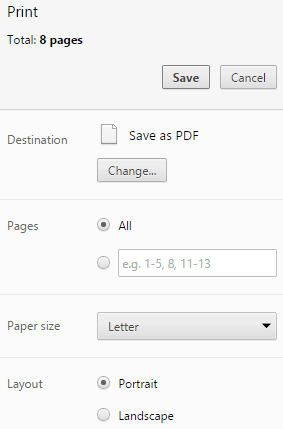
Google Chrome Print Window


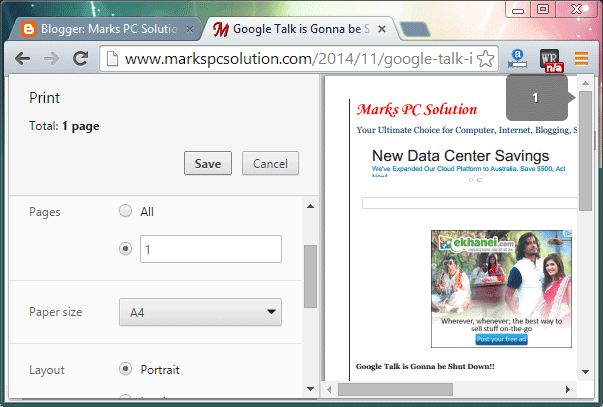
Google Chrome has a nice printing option other than Windows Default Print Dialogue. Here you will get a preview of the pages which you wanna print. But if you use the system dialogue, there will be now print preview option. 


Google Chrome Print as PDF


This feature was not available in previous versions of Chrome. So, before you go, you must upgrade to the latest version of Google Chrome. Google chrome also support cloud printing. I will talk later about it. Now lets start - 

  1. Make sure your Chrome is up to date.
  2. Now open a webpage that you wanna save as PDF.
  3. Press Ctrl+P and immediately you will get a Print option on the left and Print Preview on the right.
  4. At the top you will get the number of pages. You can choose printer from Destination option. Hit on the Change button to choose a printer. Select Save as PDF to create a PDF copy of the current webpage. 
  5. Then Choose Pages - Select All or enter page number.
  6. Choose Paper Size & Layout. You can also customize the Margins if necessary. Select custom margin and drag the margin to fix your margin size.
  7. Choose the Options - Select whether the Headers & Footers, Background Colors & Images will be printed or not. 
  8. Finally, hit on the Save*/ Print button to save your document as PDF or print using a printer. 

* If you save as PDF, you must choose a destination. 


Stay with Marks PC Solution to get more interesting IT topics!


Go to link download

Read more »