Showing posts with label brush. Show all posts
Showing posts with label brush. Show all posts
Thursday, October 6, 2016
Creating Custom Brush in Illustrator
Creating Custom Brush in Illustrator

Adobe Illustrator can be compared to a programming tool in that sense, it provides a lots of ways to customize your graphics works. It provides so many designing options which you hardly get in other graphics tools. In this lesson, you will learn how to create amazing brushes within few minutes!
Today Im gonna talk about how to create custom brushes - Scatter Brush, Art Brush & Pattern Brush. After creating these brushes, you can use them as borders for different shapes such as triangle or oval etc.
Note: This tutorial applies to all versions of Adobe Photoshop. However Ive prepared this tutorial using Illustrator CS6.
Okay lets start -

Run Adobe Illustrator from your PC. Now look at the tools panel and find the Paintbrush Tool (See the image on the left). I will create two little objects with this tool which later will be used to create awesome brushes.
Go to the File Menu > New > Create a new document of any size.
Hit on the Paintbrush Tool and draw an object (I sketched something like a leaf) as shown in the image below.

- Now select it through selection tool
- Press Alt key and drag it to create a copy of it.
- Now select the second leaf again and rotate it, place it over the first leaf so that they look like attached.
- Again select the first leaf > Double click on Fill Color from the bottom of tools panel > Choose Red.
- Similarly, select the second leaf and choose green color for it.
- It should look like as below

Now the first but the difficult part has been completed. Now youre ready to have fun in the next step.
Creating Brushes
You will be able to create brushes from the above leaves. First, make sure the brush window is open on your document. Or go to the Window menu and choose Brushes.
- Select both leaves through selection tool
- Go to the Brushes window and click on New Brush Icon (Look at the image below)

- Choose Scatter Brush > Rename it if necessary > Change the values of different fields if necessary > Hit OK
- Again choose New Brush (Leaves must be selected) > Choose Art Brush > You can change the size and direction > Hit OK
- Click on New Brush again > Choose Pattern Brush > Hit OK
- Now youve three custom brushes. Lets apply them :)
Applying the Brushes to Shapes
Before creating shapes, make sure your fill color is white. So that you can clearly understand the effects of different brushes.
Now choose Ellipse Tool (Oval) from the shape. Press Shift key and draw a circle. Now go to the brush window and Apply your newly create Art Brush. The circle will look like as below!

Create another circle. And this time you should test the pattern brush.

How is it? :)
In this way, you can also apply this trick to different shapes such as triangle, star, rectangle etc.
Here Ive just illustrated a simple example of customizing the brush. In this system, you can create numerous brush designs. And can you imagine how much designing options are available in whole illustrator? Simply Ive no idea. There could be millions!!!
It takes my whole evening to prepare this tutorial. Please inform me whether you like it or not. :)
Stay with Marks PC Solution to get more interesting IT topics!
Go to link download

Wednesday, September 28, 2016
Working with Photoshop History Brush Tool
Working with Photoshop History Brush Tool
Adobe Photoshop has been famous for some exclusive tools. History Brush Tool is one of them. With this tool you can switch between the different states of an image during the current working session. And this tool is mush if you wanna change the color of dress of a person. Lets explore this tool . . .
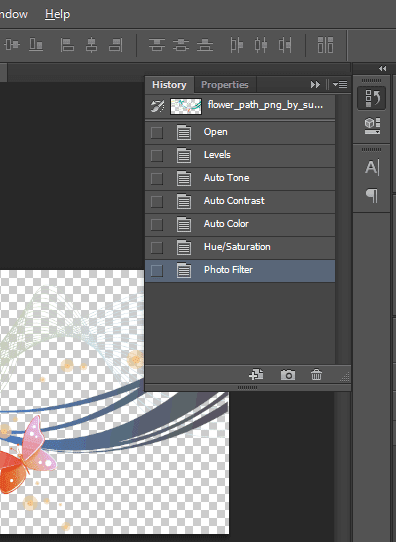
Photoshop History Option - Window > History
After opening a new Photoshop Document, it creates a history of it. And every time you make a change to this document, it creates a new history. And Photoshop is capable of saving last 20 histories of your document.
Suppose youve opened an image in Photoshop. If you change its color, it will be history 1. If you type something, it will be history 2. If you erase any part or add something, it will be history 3.
Another thing is, Photoshop is not good for undo (Ctrl + Z). By pressing Ctrl + Z, you can go one step back at best. History Brush Tool is the actual way to go back to your previous states.
Go to Window Menu > and Choose History to check your document histories.
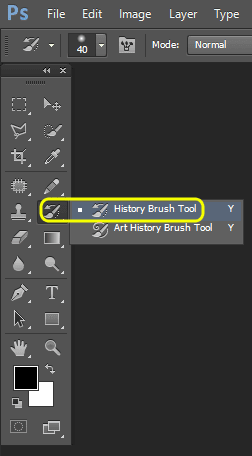
History Brush Tool - Y
History Brush Tool is marked on the following image. Keyboard shortcut for this tool is Y. There are two tools. Our focus is the first one.
With this tool, you can go back to previous states of an image. When you need to use this tool, simply click on it and your mouse pointer will be turned into a circle. You have to paint using this circle.
The portion of your image gets the touch, it will be back to its original states. You can increase the circle size by pressing ] key. And [ key will decrease its size.
Always Remember
History Brush Tool will not work if you increase or decrease the size of your image during the current working session. So, before working with History Brush Tool, make sure that your image size is okay.
If you need to change the image size, do it first. Then save the image. And open it again using Photoshop.
How Do you Use it?
Ive already illustrated the use of History Brush Tool in my previous post - Changing Dress Color. And here you will learn how to choose a specific history.
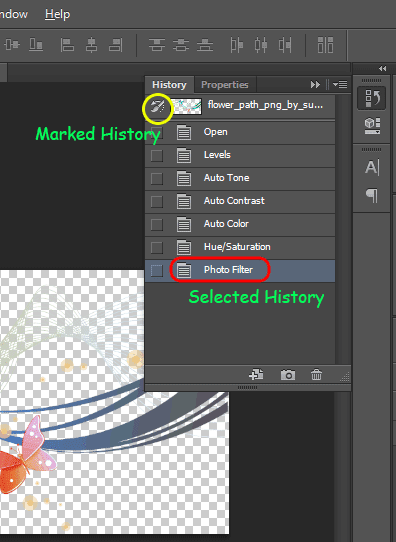
Look at the above image again. There are 07 histories of an image except the original state. And Photoshop has also named the each history properly. And the last history is selected automatically.
If you click on any previous history, your image will go back to that state.
And also notice that every history got a check box at the left. And the check box of original state is selected by history brush tool icon. That means, if you start painting by history brush tool, the painted area will go back to the original state.
Keep two things in your mind.
- Which history is selected
- Which history is marked
The selected history is your current look. And your image will take the look of marked history if you paint using using history brush tool.
I know its bit tough to understand without video tutorial. But I think you will find it easy after trying few times. Good luck . . .
Stay with Marks PC Solution to get more interesting IT topics!
Go to link download
Subscribe to:
Posts (Atom)