Showing posts with label powerpoint. Show all posts
Showing posts with label powerpoint. Show all posts
Saturday, October 8, 2016
Put Slide Number on PowerPoint
Put Slide Number on PowerPoint
When you are delivering a formal lecture or presentation through PowerPoint slides, numbering the slides are very important. It helps you operate the slides in proper order and ensures youre not skipping or repeating something. And during the presentation, if you need to go back to a particular slide, slide numbers then are of great importance!
And after the presentation, audience may ask you question regarding a particular slide. If you have serial numbers on the slides, you can easily find out the right slide to defense your answer.
Applies to
And after the presentation, audience may ask you question regarding a particular slide. If you have serial numbers on the slides, you can easily find out the right slide to defense your answer.
Applies to
- PowerPoint 2007
- PowerPoint 2010
- PowerPoint 2013
Instruction
- Run PowerPoint from your PC.
- Open a previously generated presentation or create a new one.
- Go to the Insert tab > Move to the Header & Footer option under Section area.
- Mark the Slide Number checkbox. If you dont need number on the first slide then also mark the option - Dont show on title slide
- Choose Apply to All. Thats it!
Now the slide number will be added in a suitable position. If your theme has a special location for slide number, then it will be automatically added there.
Lets consider the Wisp theme -
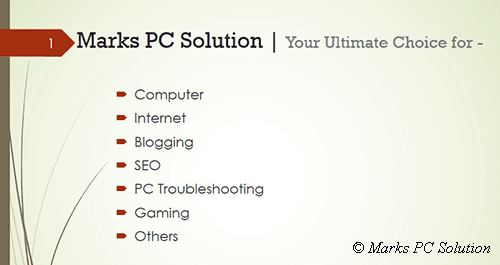
Look at the upper left corner. The dark red are with the number 1. This is the location of slide number in wisp theme.
You will find this feature in some other themes too. And the themes which dont have such location, the slide number will be added to the bottom right corner.
Stay with Marks PC Solution to get more interesting IT topics!
Go to link download

Thursday, September 1, 2016
Wisp A Great Theme for PowerPoint Presentation
Wisp A Great Theme for PowerPoint Presentation
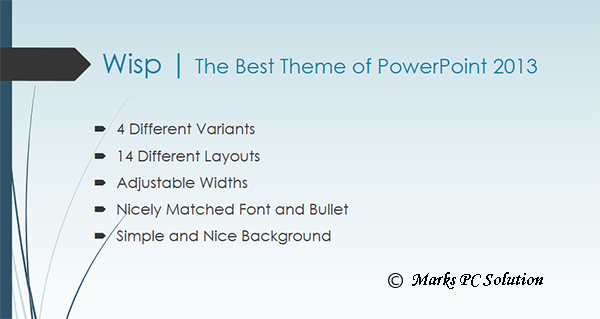
In this post, Im just introducing a theme with you - Wisp! This is a superb theme that comes with PowerPoint 2013. Im gonna share this with you so that you can use it with other versions of PowerPoint.
About Wisp Theme
In my eyes, Wisp is the most beautiful theme Ive ever seen in PowerPoint. Its very light and great for designing any kind of slides - business, education or home. With green gradient background and red accent, it can win the heart of your audience!
Just few days ago, I had a presentation in my class. I was searching for a nice theme. And I discovered this.
During the presentation, everybody was just looking at the slides. At one end, they were amazed by the theme, on the other end, they were also amazed by the beautiful combination of transitions and design.

Wisp Features
- Fully Customizable
- Available Variants (Available in 4 different colors)
- Available Sizes - Standard (4:3), Widescreen (16:9)
- 14 Different Layouts
- Specified Set of Fonts and Bullet
If youre using Office 2013, then you will get wisp theme by default. But if youre using any older version, then you will not get this. But you can download and use it.
Download > Install > Use . . .
- Download the Wisp theme from this link.
- Its in zipped condition. Unzip it first.
- Find the file named Wisp.thmx and copy it to the following location - C Drive > Program Files > Microsoft Office > Document Themes.
- Now run PowerPoint > Go to Design > Get Wisp in the Theme list > Choose it to create slides.
If you simply double click on Wisp (which is saved anywhere) then it will opened from there. But to get this automatically in PowerPoint Theme list, you need to copy the theme in the above mentioned location.
Customizing the Theme
Wisp is a customizable theme. There are some variants of this theme. You can also customize the background color. By default, you will get Century Gothic font which is nicely matched with the theme.
- To change the layout - right click on the slide > Layout > Choose a Layout
- To reset the slide - right click on the slide > Reset Slide
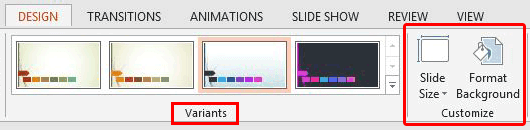
- To select different variant - Go to Design > Variants > Choose a Variant
- To adjust the width - Go to Design > Slide Size > Choose Standard or Widescreen
- To change the background style - Go to Design > Format Background
Hope this will help you. If you have any problem while preparing slide, please knock me . . .
Stay with Marks PC Solution to get more interesting IT topics!
Go to link download
Subscribe to:
Posts (Atom)