Showing posts with label automatic. Show all posts
Showing posts with label automatic. Show all posts
Monday, September 19, 2016
Disable Automatic Update in Windows 10
Disable Automatic Update in Windows 10

As I mentioned earlier, Windows 10 has come with some boring changes. One of the stupid changes is related to Automatic Update. In Windows 10, youre set to automatically install new updates. And youve no choice to change this settings. Because the change settings option is disable.
Applies to: Windows 10
Disable Automatic Update (Final Edition)
When you Disable Automatic Update?
- If your net bandwidth is limited
- If you dont need windows updates at all
- If the updates cause activators not work in your PC
In earlier versions of Windows (Windows 7, 8 or 8.1), you can manually configure the update settings. There were four settings:
- Install updates automatically
- Download updates but let me choose whether to install them
- Check for updates but let me choose . . .
- Never check for updates
In Windows 10, you dont have any option to choose any of these settings. Its simply disabled. You cant use the drop down menu. Look at the image below:

But still you have a chance to configure Windows Update. And youve to enable this settings from Group Policy Editor. In this post, Im gonna discuss about enabling/ disabling Automatic Update of Windows 10.
Instruction


If Group Policy Editor (gpedit.msc) is not Available?
Then follow this system -
Control Panel > Administrative Tools > Services > Scroll to the bottom > Windows Update > Startup Type > Choose Manual > Apply > OK.
Hope this will help. Take a reboot if necessary.
Fix these problems too!
Instruction
- Press Start+R > Type gpedit.msc > Press Enter.
- Computer Configuration > Administrative Templates > All Settings.
- Find Configure Automatic Updates (Press C to go there quickly).
- Choose Enable > There are 5 choices in the Options > Choose # 5 - Allow local admin to choose setting.
- Apply > OK.
Now your automatic update settings will be like this -
Have you noticed that the Never Check for Updates option is not available here? This option is vanished from this settings. Anyway, you can stop checking for updates completely.
Never Check for Updates
If you even dont need to check for updates, then follow the steps below -
- Run > gpedit.msc > Enter
- Computer Configuration > Administrative Templates > All Settings
- Double Click on Configure Automatic Updates
- Choose Disabled > Apply > OK.
Now your update settings will be disabled again. But this time, you Windows will never check for any updates!
If Group Policy Editor (gpedit.msc) is not Available?
Then follow this system -
Control Panel > Administrative Tools > Services > Scroll to the bottom > Windows Update > Startup Type > Choose Manual > Apply > OK.
Hope this will help. Take a reboot if necessary.
Fix these problems too!
- Get Windows 8 Start Screen Back on Windows 10
- Install .Net Framework 3.5 on Windows 10
- Cant type @ on Windows 10? Fix it now . . .
Stay with Marks PC Solution to get more interesting IT topics!
Go to link download

Friday, August 19, 2016
Disable Windows 10 Automatic Update All Editions
Disable Windows 10 Automatic Update All Editions
Though Windows 10 Pro users can easily disable Automatic Update, Home users cant! Because they dont have Group Policy Editor. And Registry Settings for turning off auto update doesnt work too. In this situation, if youre a home user then you can stop automatic update through Services.
At the end of last year, Ive published another post on disabling Windows 10 Auto Update. But it doesnt work with Windows Home edition. If youre using Windows 10 Pro or Enterprise edition, then follow the link below -
Disable Automatic Update through Group Policy Editor . . .
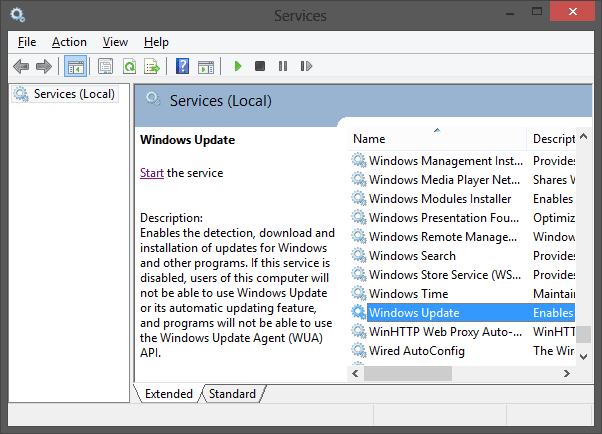
Turn off Automatic Update (Specially For Home Users)
- Go to Control Panel.
- Open Administrative Tools.
- Click twice on Services.
- Lots of services will be there. Press W > Scroll down and find Windows Update. (Or Press Start + R > Type services.msc > Press Enter > Find Windows Update)
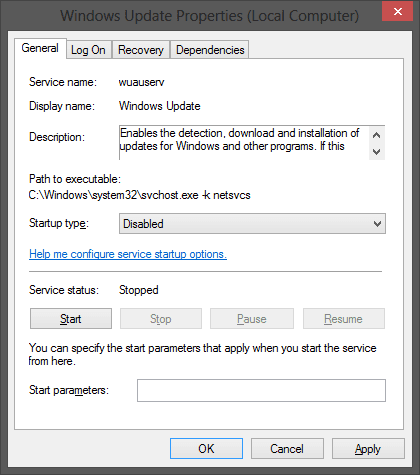
- Double click on it to open Windows Update Properties.
- Make sure youre on the General tab.
- Choose Startup type Disabled. If youd like to update manually, then choose Manual.
- Now look at the Service status. If its running, stop it.
- Finally, hit on the Apply > OK.
Hope this will work. Let me know whether it works or not. If you face any sort of problem, inform me. Waiting for your feedback . . .
Stay with Marks PC Solution to get more interesting IT topics!
Go to link download
Subscribe to:
Posts (Atom)